
The basis is the <a> tag with the href attribute, which points to the destination address, and link quality depends both on a correct URL and on clear anchor text. In practice, problems usually stem from choosing the address type (relative vs absolute), omitting the protocol in external links, and mistakes in paths. In this article, you will find short, correct examples, rules for building addresses, and tips that help keep links stable after publication. You will also learn what happens after a click and how to avoid common pitfalls such as misleading links without href or invalid characters in a URL. Read on, and treat the examples as ready-made patterns to paste and adapt in your own code.
Basics of the <a> tag in HTML
You create a link to a page in HTML with the <a> tag and the href attribute, which defines the destination address. A minimal working example is: <a href=”https://example.com”>Visit the website</a> or, within a site, shorter: <a href=”/kontakt”>Contact</a>. If an element is meant to lead to another page or section, use <a>, not <button>, because <button> is intended for actions (e.g. submitting a form). After a click, the browser sends an HTTP/HTTPS request to the address from href and loads the document or scrolls to a fragment when you use #.
Anchor text should clearly describe the destination, because users often scan a page by links instead of reading everything in order. Instead of “click here”, it is better to use specific labels, e.g. “Download the PDF price list” or “See the service offer”. An image can also be a link if you place <img> inside <a>, e.g. <a href=”/”><img src=”logo.png” alt=”Home page”></a> — in this setup, alt is crucial for accessibility. Do not use <a> without href as a “fake link”, because it is not a navigation link and can be misleading for screen readers.
- 01<aa>; + href = LINKDefines the destination address.
- 02<a> versus <button>;Navigation, not action.
- 03Browser requestSends an HTTP request, loads the page.
- 04Clear 'Anchor Text’Describes the destination specifically.
Use the correct tag and a clear description to make navigation easier for users.
URLs: relative and absolute links
A URL in a link can be relative or absolute, and that choice determines whether the link will work correctly in different environments and with different file locations. An absolute link includes the protocol and domain, e.g. https://pl.wikipedia.org/wiki/HTML, so it is especially useful when linking outside your own site or when content needs to work identically in different environments. A relative link refers to the current file location, e.g. <a href=”kontakt.html”>Contact</a>, which can be handy on static sites after a domain change. For external links, provide the full address with the protocol (https://…), because entering “www…” without “https://” may be treated as a relative path and break the link.
- Use a relative link when the link should work within the project and does not depend on the domain (e.g. kontakt.html).
- Choose a path from the root directory (e.g. /blog/) if you want to count the address from the domain root, regardless of the current subpage.
- Use an absolute link (e.g. https://example.com/…), when directing outside the site or when you need identical behaviour in different environments.
When moving around directories, shortcuts such as “../” (one directory up) and “./” (current directory) are useful, e.g. from “/produkty/index.html” the link “../kontakt.html” leads to “/kontakt.html”. It is also worth remembering that “/oferta” and “/oferta/” may be interpreted differently by the server, so for stability it is best to stick to one convention in links and handle redirects (301) on the server side. If a link contains spaces or Polish characters, the URL should be correctly encoded (e.g. a space as %20), and in practice it is better to use friendly URLs (slugs) such as “/oferta/cennik” instead of “/oferta/cennik 2026”. When the address returns 404, the user will see an error, so after publication it is sensible to test links and, if anything changes, update them to the final URLs instead of leaving redirect chains.
The most important link attributes and their use
The most important link attributes in HTML include those that control how it opens (target), security (rel), usability description (title), and behaviour when downloading (download). If you want to open a link in a new tab, use target=”_blank”, e.g. <a href=”https://example.com” target=”_blank”>…</a>. If you use target=”_blank”, add rel=”noopener noreferrer” to reduce the risk of tabnabbing and cut off access to window.opener. In practice, target=”_blank” makes the most sense for external links, when you want the user not to “lose” your site.
The rel attribute can also indicate the nature of a link: for ads and affiliate links, use rel=”sponsored”, and for user-generated content use rel=”ugc”; rel=”nofollow” tells bots not to pass SEO “power” (treated as a hint). Title can display a tooltip on hover, but it should not be the only carrier of important information, because it is not always read consistently. If you want to limit the transfer of source-page information to the destination site, you can add referrerpolicy, e.g. <a href=”https://partner.pl” referrerpolicy=”no-referrer”>Partner</a>. For files, download is useful (e.g. <a href=”/pliki/regulamin.pdf” download>Terms and conditions</a>) as well as an optional type (MIME), e.g. type=”application/pdf”, to set expectations about the format more clearly.
- 01target="_blank"Opening in a new tab
- 02rel="noopener noreferrer"Security with target="_blank"
- 03rel="sponsored" / "ugc"Labelling ads and content
- 04rel="nofollow"Telling bots (do not follow)
- 05title and `downloadDescription and downloading
Proper use of attributes increases security, accessibility and control over user navigation.
Contact links: mailto, tel, SMS and maps
Contact links in HTML are built using special schemes in the href attribute, such as mailto: (e-mail) and tel: (phone), which launch the relevant application when clicked. The simplest e-mail variant is, for example, <a href=”mailto:biuro@firma.pl”>Write to us</a>, which opens the default mail client, although behaviour may differ on desktop and mobile. You can also add the subject and message body as parameters, e.g. mailto:biuro@firma.pl?subject=Quote&body=Please%20send%20a%20quote. When passing the subject or body in mailto:, remember to encode characters in the URL (e.g. a space as %20), because without that the parameters can get “mangled”.
For quick dialling on mobile devices, use tel:, e.g. <a href=”tel:+48123456789″>+48 123 456 789</a>, with the number in href written without spaces, while in the text you can format it more readably. For SMS, you can add a link like <a href=”sms:+48123456789″>Send SMS</a>. Support for parameters (e.g. SMS body settings) depends on the system, so it is best to treat this as a convenient shortcut rather than a critical function. If these links are to work consistently, it is worth testing them on Android and iOS, because behaviour can differ.
The easiest way to provide a maps link is as a Google Maps search URL, e.g. https://www.google.com/maps?q=Warszawa,+ul.+Marszałkowska+1, so the user sees the specified location straight away. Alternatively, a sharing link from Maps also works, usually shorter but less predictable. If you are directing to contact in an external app (e.g. WhatsApp), https://wa.me/48123456789 is often used and in practice such a link can be opened in a new tab with target=”_blank” and rel=”noopener”. Whatever the channel, make sure the link labels are unambiguous so the user immediately knows whether the click will open e-mail, a call, SMS or a map.
Styling links for better UX
You improve links for UX primarily by keeping clear, “link-like” clickability signals in every state. Browsers default to underlining links and changing their colour (e.g. visited), which helps users recognise navigation and orient themselves in the content more quickly. If you remove underlining in CSS, make sure there is another clear cue, such as suitable contrast, an icon or an unambiguous hover effect. The most common mistake in long articles is links in a colour too similar to normal text or relying solely on hover, which is not available on touch devices.
A link should be readable in the :link, :visited, :hover, :active and above all :focus states, because this directly affects keyboard navigation. Good practice is the focus-visible style, e.g. a:focus-visible { outline: 2px solid #005fcc; outline-offset: 2px; }, because it lets you quickly see where the focus is without reaching for the mouse. It is also worth making sure the link text contrast is sufficient (usually 4.5:1) and that the clickable area is comfortable on mobile. When a link is small (e.g. an icon), enlarge it with padding, because the practical comfort threshold is about 44×44 px. If you want a “button” effect, you can style <a> like a button (e.g. display:inline-block, padding, background, rounded corners) without changing the navigation semantics.
- 01Clickability signalsKeeping links clear.
- 02Alternative cueContrast, icon, clear effect.
- 03Not just hoverRemember touch devices.
- 04All states:link, :visited, :hover, :active, :focus.
For good UX, links must be clearly recognisable in every state, including keyboard navigation and on dedicated touch devices.
Accessibility of links and proper descriptions
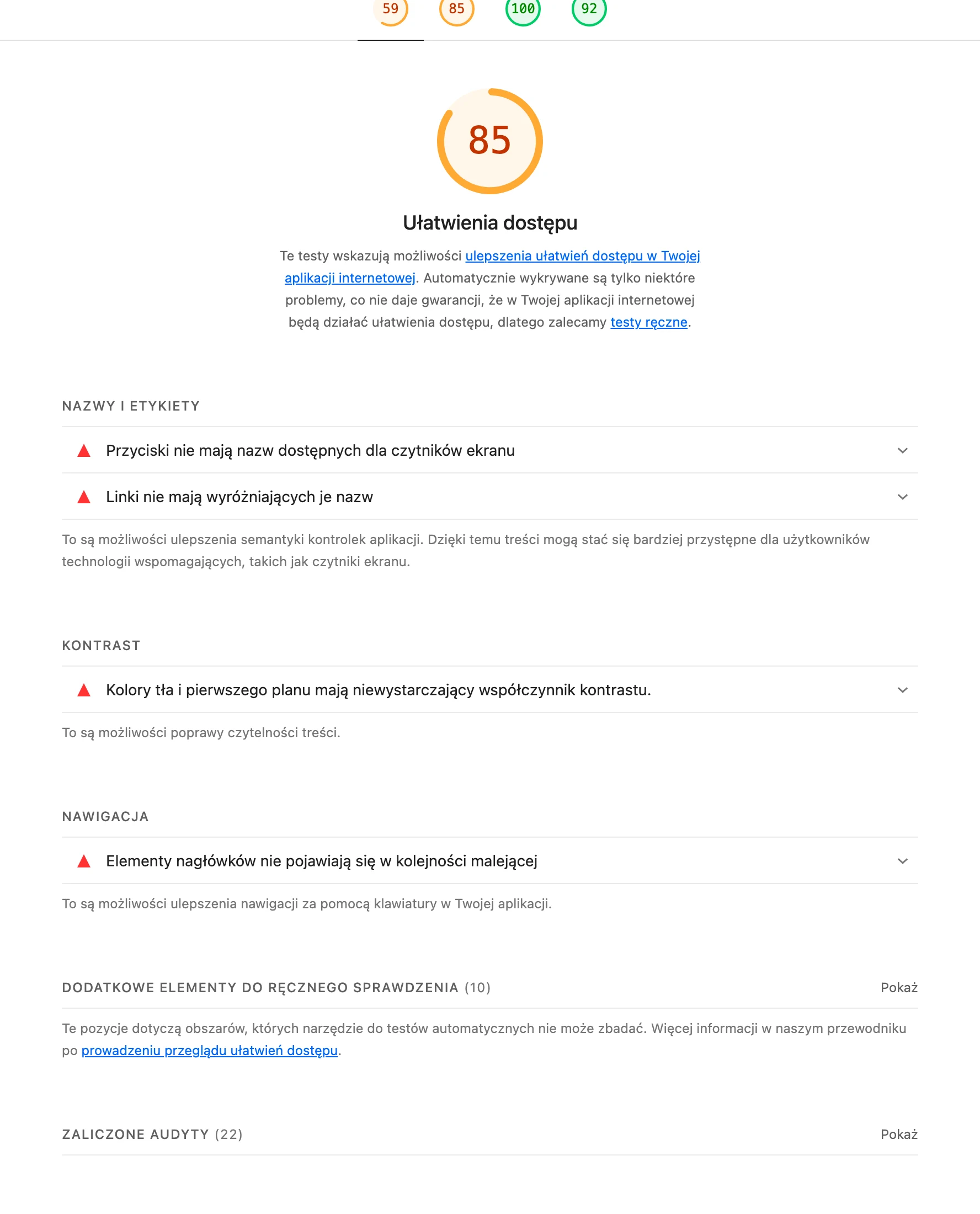
Accessible links are those whose purpose can be understood without context and which behave predictably for keyboards and screen readers. Screen readers often show a list of links alone, so the label should stand clearly on its own (e.g. “Check the returns policy” instead of “More”). When a link opens in a new tab, make that clear in the text or in aria-label, because some users may find it disorientating. If a link is only an icon or a symbol, add aria-label (rather than relying on title), because otherwise accessibility tools may report a “link without a name”.
Links should be easy to use not only with a mouse, so make sure focus is visible and that the tab order is sensible and follows the HTML order in the DOM. Do not replace links with “clickable divs”, because you lose native focus handling and keyboard users are effectively unable to navigate. In image links, the alternative text should describe the purpose of the link, not the appearance of the graphic (e.g. for a logo leading to the home page, “Home page” is better than “Company X logo”). If you have very many links in the text, do not cram them into a single sentence, because that reduces readability and makes navigation harder.
- Use clear link labels that make sense without the paragraph context.
- For icon links, add aria-label and do not rely solely on title for the description.
- Ensure visible focus (e.g. focus-visible) and a logical tab order.
- Increase the active area of links on mobile with padding and spacing.
- Check issues with tools: Lighthouse (Chrome DevTools) and axe DevTools.
SEO and link semantics
SEO and link semantics depend largely on whether links clearly communicate the destination and lead bots and users to the right pages without unnecessary barriers. Anchor text acts as a topical signal, so it should name the destination content (e.g. “Complaint policy” instead of vague wording), which also makes it easier to read the context for people who “scan” the page by links alone. Well-planned internal linking helps bots reach key subpages and shortens the navigation path, and in practice it is worth aiming for 2–3 clicks from the home page. In the navigation menu, keep links as navigation (e.g. in
Order in links also helps indexing, because it reduces duplicates and unnecessary redirects. When the same content is available under multiple addresses (e.g. with parameters), rel=canonical can help, although it is not an attribute of the <a> tag. Linking to non-existent addresses (404) worsens UX and wastes crawl budget, so it pays to monitor errors in Google Search Console (the “Pages” report). Avoid links that go through redirects (e.g. http → https) and update links to the final URL so you do not create 301→301 chains. If part of the navigation is created only in JavaScript, bear in mind that links generated solely in JS may be indexed less effectively, so where possible provide the basic <a href> already in HTML (SSR or initial HTML).
Debugging and common mistakes when adding links
Debugging links in HTML is best started by checking whether href points to the correct address and what response the server returns after the click. In Chrome DevTools → Network you can quickly verify whether the response is 200, 301/302 or 404/500, which immediately narrows the possible causes to a faulty URL, redirects or server settings. If a link leads to 404, the most common cause is a typo in the path, an incorrect protocol or a mismatch in the case of the file name. It is also worth testing links after publication, because addresses may work locally and break after deployment to hosting (especially on case-sensitive systems).
The most common problem with external links is the lack of a protocol, because an entry like “www.example.com” without “https://” may be treated as a relative path and the link stops working. On many hosts (Linux), “/Oferta.html” and “/oferta.html” are two different resources, so case differences may only become apparent after the files are uploaded to the server. Also watch out for incorrect nesting and closing of tags (e.g. a link inside a link), because they can change the actually clickable area. In such situations, the W3C validator (https://validator.w3.org/) can help. Do not use href=”#” as a “fake link”, because it causes a jump to the top and clutters history if you do not block it with JavaScript.
When a link “works” but cannot be clicked, the cause is most often CSS — for example an overlay (absolute positioned element) or z-index that captures clicks. In DevTools, use Inspect, then check whether another element is sitting above the link and whether pointer-events have been disabled. If the URL contains parameters, encoding errors (e.g. an unencoded “&” character in a value) can break the query string and send users to unexpected pages. In JavaScript, use encodeURIComponent or generate links on the server side with correct encoding. For tel: and sms: links, test on Android and iOS, because behaviour can differ, just like the behaviour of target=”_blank” in mobile browsers and app webviews. On larger sites, tools such as Screaming Frog SEO Spider or scripts like lychee are useful for periodically detecting broken links.