


Google account and sign-in: key steps before adding a review
To add a review on Google, you must be signed in to a Google account (Gmail). On a phone, you can verify this quickest in the Google or Google Maps app. If you can see your initials or a photo in the top right corner, that means you are signed in. Without signing in, the add review button may be unavailable or the submission may not go through to publication. Before you start, make sure you are using the right account, the one where you want your review history to be kept.
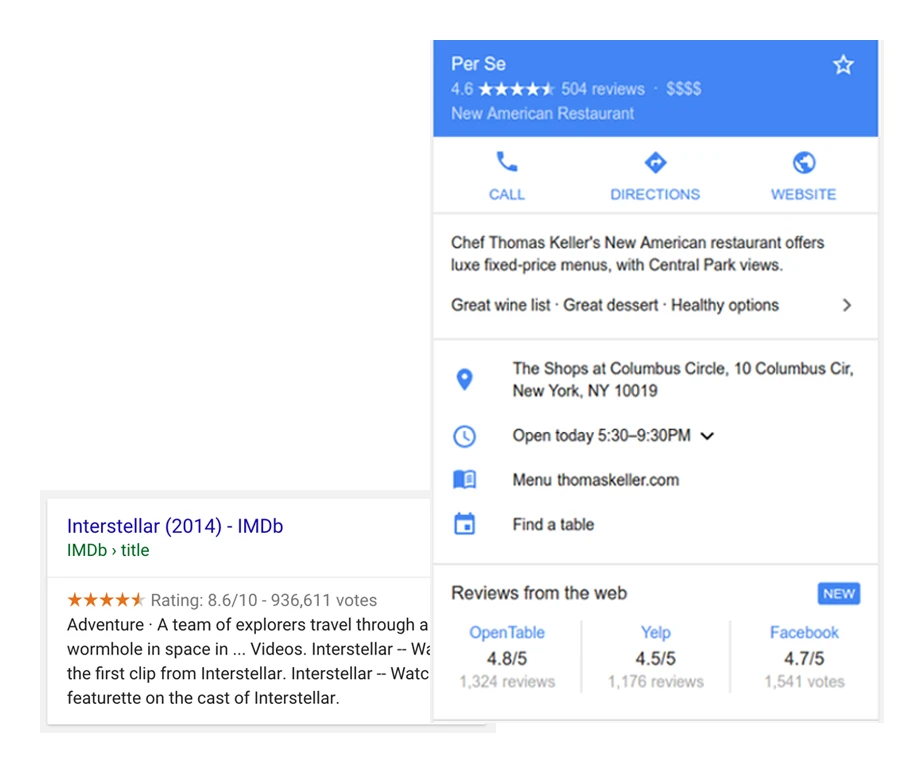
Correct sign-in also reduces the risk of choosing the wrong place to review. The most common mistake is leaving a review for a business with a similar name, but in a different location, so before clicking “Write a review” check the address, district and photos of the place in Google Maps. That way your review will go to the correct business profile and will genuinely help other users. If in doubt, compare the map pin and address details with the place you actually visited.
- 01Check sign-inIn the Google app. Look for initials or a photo.
- 02Choose the placeVerify the address, district and photos.
- 03Confirm the business profileAccurate review, correct business.
Proper sign-in and verification ensure the review is published on the correct business profile.
identity verification and restrictions on publishing reviews
Google may limit the publishing of reviews on new accounts or with unusual activity, which is why a review can sometimes fail to appear even though it was added correctly. Such blocks happen, for example, when you publish many reviews in a short period of time, as this can look like unnatural behaviour. If this problem affects you, slow down the pace at which you add reviews and complete your profile (e.g. photo, name), because this often acts as a trust signal. In practice, it also helps to refine the content so that it comes from real experience rather than generalities.
Usually the review is visible straight away, but sometimes it goes through automatic verification and may only appear after a few hours or days. If after 24–48 hours it is still missing, go to the “Your reviews” section in your profile and check whether a restriction status has appeared. If the review appears in “Your reviews” but is not visible publicly, moderation mechanisms or anti-spam filters are usually at work. In that case, it is best to stick to factual details and avoid content that may breach the rules (e.g. profanity or personal data).
how to find the correct business profile in Google Maps
You can recognise the correct business profile in Google Maps by comparing the details on the place card with the location you actually visited. The most common mistake is adding a review to a business with a similar name, but from another part of the city or another town. So before you go on to leave a rating, check the address, district and photos of the place that Google shows in the business profile. If anything does not match, go back to the results and choose a different card before clicking “Write a review”.
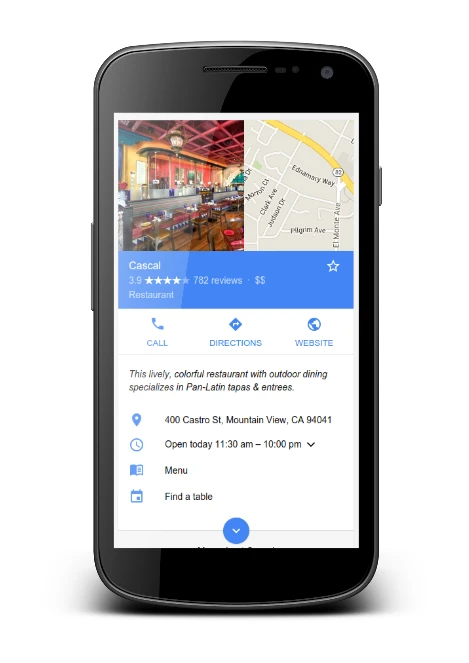
When verifying a Google Business Profile, rely on what can be confirmed quickly: the pin location on the map and the details visible in the photos. This check is particularly important when a business has several branches or its name is strikingly similar to another place. Only once you are sure it is the correct location should you move to the reviews and rating section. This is a simple step that protects against publishing a review on the wrong profile, which cannot technically be “moved” to another listing.
- 01Compare the detailsMatch the place card with the real location
- 02Watch out for similaritiesCheck whether there is a business with a similar name
- 03Verify the address and photosConfirm the neighbourhood and the place photos
- 04Confirm the pin on the mapMake sure the location is correct
Leave a review only after making sure the listing matches the location you visited exactly.
step by step: adding a review in the Google Maps app on your phone
You can add a review in the Google Maps app on your phone by searching for the place, going to the “Reviews” section, selecting the stars, writing the text and publishing the review. Start by launching Google Maps on Android or iOS, type the business name into the search bar, and then open its listing. Make sure the address and the pin on the map match the place you are reviewing, as this reduces the risk of a mistake. Then scroll the place card to the “Reviews” section (sometimes this works as a separate tab) and choose “Write a review” or the pencil icon next to the stars.
Set the rating at the beginning, because the app often does not allow you to save a review without selecting a star rating (1–5). Then write 2–6 sentences about your real experience: what exactly you received and how the service went, ideally with the context of the visit and concrete examples. Avoid sensitive data (e.g. phone numbers, private addresses) and accusations without evidence, as this increases the risk of problems with publishing. A good approach is to match the stars to the content: e.g. 4/5 for a mixed review and a clear indication of minor drawbacks.
If you want to increase the credibility of the review, add photos or a video by selecting them from the gallery after tapping the camera icon (Google may ask for access to photos). Materials showing a real result work best, e.g. a dish in a restaurant, the effect of a style in a salon, or a price board in a workshop. For some places, the app may also ask additional questions, e.g. about waiting time or amenities, and the answers later appear in summaries. After clicking “Publish”, go to the profile in Maps and check “Your reviews” to confirm that the review is saved and public.
If you spot an error after publishing, you can edit the review from the listing: Your review → menu (three dots) → “Edit review”. You can change the star rating, the text and add more detail, and the update usually appears after a few minutes. If you cannot see the “Write a review” button, first check whether you are signed in and whether the app is up to date in Google Play Store or App Store. If the listing is temporarily suspended or is a duplicate, the option may disappear. In that situation, try finding the second listing for the same business.
adding a review in Google Search on a computer
You can add a review on Google on a computer directly from the search results by opening the business listing panel and choosing “Write a review”. Go to google.com and sign in in the browser. If you use several accounts, make sure you have selected the one where you want to keep your review history. Then search for the business together with the city to avoid mistakes, and open the place panel visible beside the results. In the panel, click the stars section or the number of reviews, then choose “Write a review” to go to the form.
- Sign in to google.com in your browser and choose the correct account.
- Search for the business name + city to reach the correct listing.
- Click the stars/review count in the place panel and choose “Write a review”.
- Set a 1–5 rating and write the text (on a computer it is easier to refine the structure of the pros and cons).
- If you want, add photos from your drive (JPG/PNG; video may be available depending on the interface) and click “Publish”.
- You can check visibility in maps.google.com → “Your contributions” → “Reviews”, even if the review does not appear publicly straight away.
If the review submission window does not work or the publish button does not appear, the cause may be extensions that block scripts and ads (e.g. uBlock, NoScript). In that situation, temporarily disable them for google.com/maps.google.com or check in Incognito mode in Chrome/Edge. It also happens that Google displays the “Rate this place” card after visiting the location (based on location history). Then you can click the stars and add the text just like in a standard review. The most reliable verification method is still checking the entry in “Your contributions”, because there you can see whether the review has been saved on the account.
- 01Sign in and searchGoogle Account, business and city
- 02Open the business panelPanel next to the results
- 03Click “Write a review”In the stars or reviews section
- 04Fill in the formRating, text, photos
- 05Disable blockers if there are problemsTemporarily for Google.com
Summary: The process takes place directly from the business panel in search, requires you to be signed in and may require temporarily disabling blockers.
what a good review should include to be effective
A good Google review works best when it describes a specific experience rather than generalities. Instead of “great”, it is better to say exactly what was good, for example quick order handling or the quality of the dish, because that kind of description helps others judge what to expect. It is worth adding the context of the visit, for example the time of day and how busy it was, because these factors genuinely affect waiting times and service quality. If you include prices, be precise and relate them to the outcome, because users often look for an answer to “is it worth it”.
The most credible reviews can combine both positives and negatives in one statement, and assess the service without personal attacks, describing behaviours and situations rather than people’s character. If you add photos, treat them as evidence: show the portion, the result of the service or the actual condition of the place, while avoiding recognisable faces of bystanders and number plates. Do not include promotional content (links, discount codes), personal data or accusations of crimes without evidence, because such fragments are more likely to result in blocking or removal. It is also worth avoiding a conflict of interest, meaning reviewing a company you work for, run or a direct competitor, because that may be seen as an attempt to manipulate.
If you want to use a ready-made template, stick to a simple structure: rating, context, specifics and a short conclusion. Example for a restaurant: “4/5. Visit at 18:30, waiting time 25 min. The ramen was very good, but the table by the entrance was cold.” Example for a mobile phone repair service: “5/5. iPhone 12 battery replacement – 199 zł, done in 40 minutes, the phone works like new”. Such reviews are clear, factual and usually fit the rules of user-generated content better than short slogans without detail.
how to edit and delete reviews in Google Maps
You can edit or delete a review in Google Maps in the “Your contributions” → “Reviews” section of your profile. Open Google Maps, go to your profile, then to “Your contributions”, and then select the “Reviews” tab and choose the review you want to change. You can edit the text, change the number of stars and add photos, and the update is usually visible after a few minutes. If the company has resolved the issue and you want to be fair, update the review by adding what changed (e.g. after replacing a faulty product).
You delete a review in the same place by selecting the menu (three dots) next to the review and clicking “Delete”. Deleting affects the company’s average rating (that rating stops counting), but you can still add a new review later, provided it relates to a real experience. If the owner responds to your review, Google does not provide a classic discussion thread; instead, you can edit your review and add one sentence in response. When they ask for contact, it is better to provide it privately (e.g. by email/form) rather than in the review text.
Photos added in a review usually disappear from the public profile of the place after the review is deleted, but they may remain in your materials if they were added separately as place “Photos”. If you also want to delete the materials, check them in “Your contributions” → “Photos”. Technically, you cannot move a review between listings (e.g. duplicates), so the simplest option is to delete the review from the wrong profile and add it again to the correct one. The display name shown with the review comes from your Google profile settings and after you change it, it may update in reviews only after some time, not always immediately.
the most common problems with reviews and how to solve them
The most common problems with Google reviews come from moderation, anti-spam filters, app errors or simply choosing the wrong listing by mistake, and in most cases they can be resolved with a few simple actions. If a review is visible in “Your reviews” but not publicly, it is usually due to delayed verification or filters, so it makes sense to wait 24–48 hours. When Google suspends publication with a message about violating the rules, it is usually about profanity, personal data, threats, promotional links or mass pasting of the same content. In practice, it is best to stick to facts, remove risky fragments and try again without pasting the identical text in multiple places.
- The review is not publicly visible: wait 24–48 h, and if it is still not there, edit the review (even a minor change) and check again.
- You cannot add stars in the app: close Maps and restart it; on iOS also check network access (Wi‑Fi/data) and whether a VPN is not blocking Google services.
- No review button: make sure the place has an active listing; in the case of duplicates, try to find the second business card.
- Duplicate listing or wrong address: report the issue in the listing via “Suggest an edit” → “Close or remove” → “Duplicate” (options may vary depending on the country).
- You are adding lots of reviews at once: spread out the publications over time, because a dozen reviews in one day from one device and network may look suspicious.
If a company does not have a Google Business Profile, it is not possible to add a review, and when a place has the status “Permanently closed”, the ability to leave reviews may be limited. It also happens that a review “disappears” after some time because algorithms classify it as spam or the company profile is in the process of changes or merging, so it is worth checking whether it is still visible in “Your reviews”. Prompts such as “Rate this place” may not appear when “Location history” is turned off, but this does not block leaving a review manually. When you need support, you can submit a report via “Send feedback” in Google Maps (Settings → Help/Feedback), preparing the publication date, the link to the place and screenshots from “Your reviews”.
FAQ
Frequently asked questions
How do I add a Google Maps review step by step on a phone?
Open Google Maps, search for the business, go to its profile and open the “Reviews” section. Then choose the stars, add your text and click “Publish”.
Do I need to be logged in to a Google account to add a review?
Yes, without signing in the add review button may be unavailable or the submission may not be published. It is also best to check that you are logged into the right account, where you want your review history to be kept.
How can I check that I am reviewing the right business in Google Maps?
Compare the address, district, place photos and the pin location on the map with the location you actually visited. This is especially important when businesses have similar names or several branches.
Why does my Google review not appear publicly straight away?
Google may hold back publication on new accounts or with unusual activity, and the review then goes into automatic verification. Sometimes it appears in “Your reviews”, but is only shown publicly after a few hours or days.
What should I do if I cannot see the “Write a review” button in Google?
First check that you are signed in and that you have the latest version of the app or browser. If the profile is a duplicate or has been temporarily suspended, try finding the other listing for the same business.
How do I edit or delete a review in Google Maps?
Go to “Your contributions” → “Reviews” and select the review you want to change. From the same place you can amend the text and stars, or delete the review via the three-dot menu.