

How to choose the best visual note-taking tool?
You will choose the best visual note-taking tool when you match it to your device, your note-taking style and whether you work alone or in a team. If you take notes with a stylus, tablet apps are the natural choice (e.g. iPad + Apple Pencil), and if you more often build diagrams with a mouse and keyboard, comfortable work in the browser or on a computer becomes the priority. Templates and layout also matter a lot (grids, dots, frames, arrows), because they are what help keep notes readable over time. Good selection criteria save time and protect you from export and backup problems when your note library starts to grow.
Before making a decision, check whether the software supports your main scenarios: sketchnotes, diagrams or boards for workshops. For maps and organising topics, layouts typical of mind maps matter, and for whiteboards, easy board splitting and co-editing. Search and OCR are also important, because without handwriting or text recognition it quickly becomes hard to find old decisions. It is also worth assessing the cost and the risk of “lock-in” (subscription vs one-off payment, ease of migration) before you move all your materials there.
- Input and device: stylus (iPad/Android/Windows) vs mouse/keyboard; e.g. iPad + Apple Pencil points to Procreate/Goodnotes.
- Templates and layout: grids, dots, frames, arrows; e.g. XMind for maps, Miro for canvases and flow.
- Export and sharing: PDF/PNG/SVG, public link, collaboration; e.g. Excalidraw exports SVG/PNG, and Miro makes it easy to work via a link for a team/client.
- Search and OCR: handwriting/text recognition; e.g. Goodnotes (OCR), OneNote (search).
- Price and lock-in: subscription vs one-off purchase and ease of migration; e.g. OneNote is free, while Miro is often billed by subscription.
The most common mistakes are choosing the “most feature-rich” tool without matching it to the device and working style, and skipping the export test before building a large note library. It is also troublesome to ignore the lack of OCR, which over time makes it harder to search and organise materials. Avoid combining several tools without clearly assigned roles (e.g. mind map + whiteboard + notebook), because then it is easy to duplicate content. It is more sensible to designate one place for the archive and stick to a consistent way of sharing work outputs.
- 01Match it to the deviceTablet, computer, ergonomics
- 02Define the working styleIndividual, team-based, scenarios
- 03Check templatesGrids, layouts, readability
- 04Secure the futureExport, backup, scalability
The key is to match the tool to your needs, working style and long-term goals.
The most important features and export options in note-taking software
The most important features in visual note-taking software are those that make it easier to use notes later: export in the right formats, simple sharing and search (including OCR). In practice, export is better treated as part of the workflow rather than a “final option”, because notes often become the only record of decisions. A good habit is to check files in the destination channel (e.g. slides, documentation) so you do not later get stuck on readability or editing issues. If notes are meant to live longer than one meeting, PDF/PNG/SVG and clear rules for sharing links (public/private) and edit permissions should be the priority.
When it comes to formats, the key is to match them to the purpose: PDF works well as an archive and for printing, PNG as a quick paste-in for presentations, and SVG as a file for further editing. In team tools, sharing the board via a link and convenient collaboration are equally important, especially during workshops and brainstorming sessions. It is also worth checking offline operation and synchronisation. A simple test in airplane mode quickly shows whether notes are available on the move or in the room. Organising exports (e.g. one place for the “final version”) helps maintain consistency between the source version and the files passed on further.
- Define the target formats: PDF for archive, PNG for presentations, SVG for editing.
- Check sharing and access: public vs private link, edit permissions; in a company, SSO is sometimes preferred.
- Test offline: switch on airplane mode and check whether the notes are available.
- Take care of backup: the 3-2-1 approach (3 copies, 2 media, 1 off-device), e.g. cloud + local drive.
The most costly mistakes are not having a copy off-device and locking yourself into a tool without easy export, which makes migration difficult. It is also risky to share a board with a public link without access control, especially when notes contain project decisions. Before passing materials on further, it is worth making sure there is no sensitive data in them that needs anonymising. That way, visual notes remain useful and safe as a permanent element of work, rather than just a one-off “drawing from the meeting”.
Five best programs for making visual notes
The five best graphic note-taking programs are the ones that deliver the most concrete result fastest in your scenario, whether that means sketchnotes, keeping notebooks organised, diagrams, or collaboration on a whiteboard. For stylus work on iPad, people most often choose Procreate (sketchnotes with layers and brushes) and Goodnotes (handwritten notes with OCR and notebook organisation). If you want one cross-platform place for drawing, text and pasted elements, a sensible choice will be Microsoft OneNote (free and convenient for organisation and sharing). For teamwork and workshops, Miro usually fits best, because it is a whiteboard focused on templates and sharing the board via link. When simple diagrams in a “sketchy” style and quick export matter, a good option is Excalidraw, which works in the browser.
Procreate shows its full potential when you create sketchnotes on iPad and want to work as if on a digital sheet of paper with illustration tools (layers, brushes, timelapse), then export the finished material to PNG or PDF. Goodnotes works well when structure and quick retrieval are key thanks to OCR, especially in lecture and meeting notes. OneNote will be good for people who combine drawing with text and need a “whiteboard in a notebook” on different devices, without adding unnecessary steps to the workflow. You should choose Miro if the output is meant to work with a team or client straight away, rather than just stay in a private file.
Excalidraw is useful when you need to draw a clear diagram quickly and export it straight away to SVG or PNG for further use. In practice, these five tools cover the most common needs, from handwritten note-taking, through archiving and search, to collaboration and simple diagrams. If these use cases overlap in your work, make sure you have a clear division of roles (e.g. sketchnotes vs workshop vs diagrams), otherwise it is easy to fall into content duplication. Before moving a larger part of your notes there, make sure you are happy with the way export and sharing work in your target channel.
- 01ProcreateSketchnotes, brushes, layers
- 02GoodnotesHandwritten notes, OCR
- 03Microsoft OneNoteCross-platform, free
- 04MiroTeam collaboration, templates
- 05ExcalidrawSimple diagrams, quick export
The choice of tool depends on the specific scenario and the purpose of your work.
Creating effective sketchnotes: techniques and tools
Effective sketchnotes are created when you combine a minimal amount of text with simple shapes (icons, boxes, arrows) and keep a clear hierarchy of information. The best support for this comes from stylus-friendly apps: Procreate, Goodnotes, Notability and Concepts, because they are designed for quick sketching and handwritten note-taking. To make sure the note is “usable” after the meeting, plan the page layout from the start rather than adding elements randomly. It also helps to leave space for conclusions and actions so they do not get lost among the drawings.
A simple sketchnoting workflow usually starts with a pencil sketch, then comes ink or marker, and finally a single colour accent appears, which helps keep the whole thing readable. A good practice is to narrow the palette, for example by keeping the note mainly in black and using one colour only for highlights. It is also worth building your own consistent library of basic shapes: headings, boxes, arrows and a set of around 20 icons that you move between notes. If you are just starting out, focus on consistency in symbols and labels, because that is what creates a coherent note-taking “language”.
Sketchnotes are easier and clearer to make when you use grids and simple templates, such as dotted or isometric paper, and when you keep a fixed margin for the legend. In Goodnotes you can use your own PDF template so that every page has the same layout and does not need to be set up from scratch. After the meeting, archive the note by exporting it to PDF (e.g. A4) and name files according to the standard YYYY-MM-DD_Topic so you can easily return to the decisions. This approach reduces the risk of mess in your notes and makes them easier to use later at work or in study.
Diagrams and schematics: the key to clarity and understanding
Diagrams and schematics improve clarity because they reduce processes, dependencies and architecture to a form that can be quickly understood and discussed. In practice, standards, consistent symbols and a tool suited to the level of formality matter, from “sketchy” sketches to diagrams based on shape libraries. Tools that work well for this include diagrams.net, Lucidchart and Excalidraw, which support different working styles. This makes it easier to maintain one visual language in meetings and documentation.
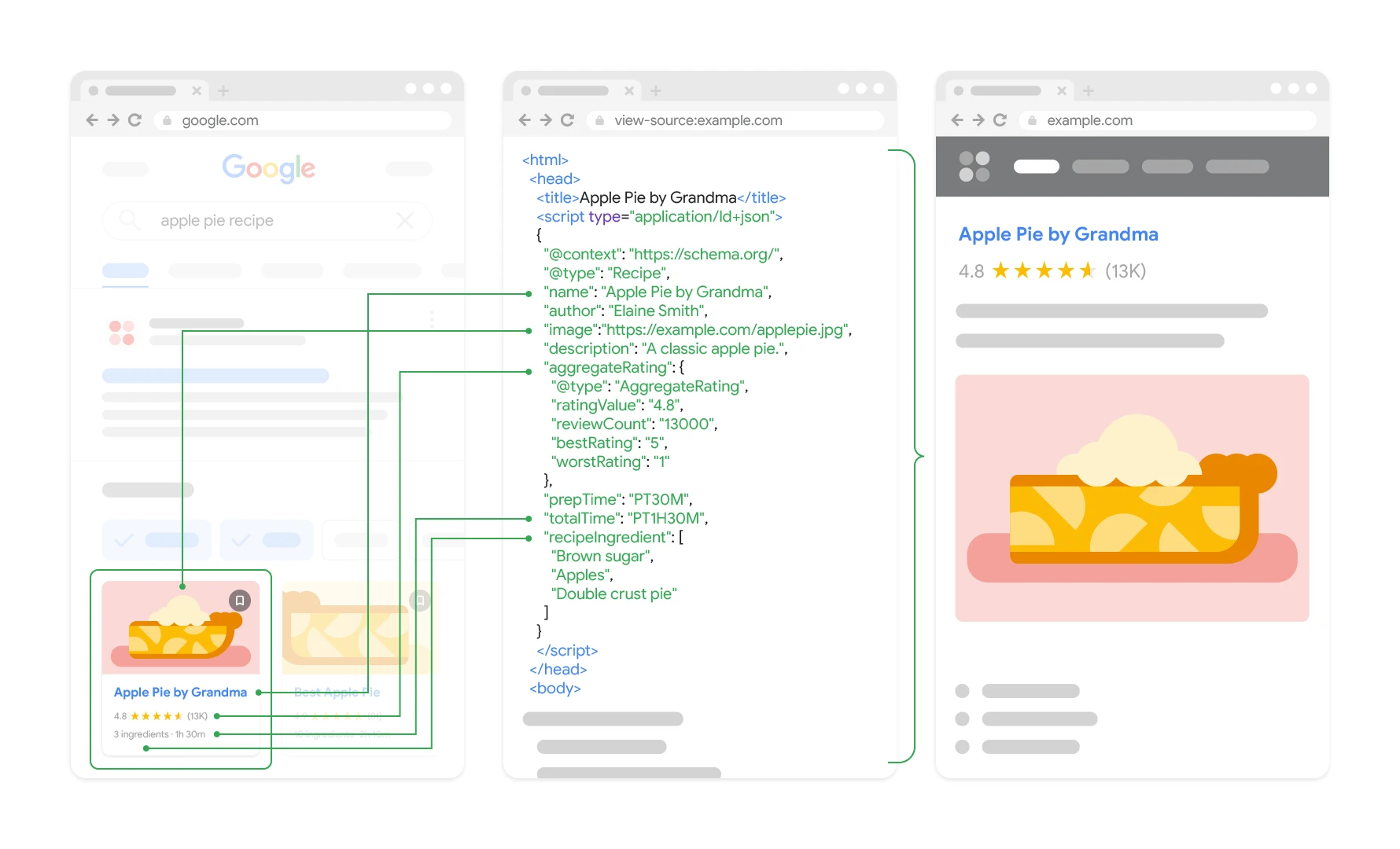
The clearest diagrams are created when you stick to popular standards such as flowchart, UML (use case/sequence) or ERD, and consistently assign the same meanings to symbols. For a diagram to be readable for the audience, follow one rule: one idea per diagram, a minimum of crossing arrows, and always a title and legend. For recurring topics, it is worth preparing your own templates (e.g. “process”, “architecture”, “stakeholder map”), which speed up work in subsequent meetings. Such templates also reduce the risk that everyone on the team will draw the same type of diagram in a different way.
It is easier to maintain order when you take care of versioning and source attribution, because without that the question “what is current?” quickly comes back. A frequent mistake is also making the elements too dense, which turns a diagram into a wall of text instead of a tool for conversation. Another problem is using different symbols for the same meaning, because each time the audience has to learn new rules. The more consistent the notation, the easier it is to return to the diagram after a week and make a decision without re-“decoding” the drawing.
- 01Use standardsE.g. Flowchart, UML, ERD.
- 02One idea per diagramMinimise complexity.
- 03Tools and collaborationLucidchart, draw.io, Excalidraw.
- 04Consistent visual languageFor teams and documentation.
The key to readability and quick understanding of processes.
Whiteboard and collaboration: how to run online workshops effectively
Effective online workshops on a whiteboard require a collaboration tool and a clear board structure that leads participants from the starting point to the conclusions. Depending on your needs and the ecosystem you use, you can choose Miro, FigJam, Apple Freeform or tldraw, because each of them supports working in a shared space in a slightly different style. The foundation is co-editing and commenting, thanks to which the board becomes a place for shared thinking rather than just a presentation. A well-designed layout reduces “getting lost in the zoom” and speeds up moving on to the specifics.
You can maintain the pace of work most easily when you rely on tried-and-tested workshop templates such as a project canvas, user story mapping, a retrospective or a process map. Order on the board is supported by simple rules: dedicated sections (Start/Work/Conclusions), numbering of areas and a table of contents at the top. In facilitation, elements such as a timer, voting (dot voting) and a “parking lot” for side topics work well, so as not to distract from the main thread. This keeps everything readable both during the meeting and after it ends.
After the workshop, take care of the handoff: export the board to PDF and add a list of decisions and actions in the comments or in the “Next steps” section. The most common pitfalls are a lack of summary and failing to transfer actions to a task tool (e.g. Jira/Trello), which means the agreements “stay on the board”. Another risk is a space without a clear structure, which slows participants down, as well as overly large graphics or resources that affect performance. A well-closed workshop leaves the team with a clear outcome and next steps, rather than just a large collection of sticky notes.
Organisation and note system: how to maintain order and accessibility
You will maintain order and accessibility of visual notes if, from the outset, you introduce a simple, repeatable system of naming, tags and regular reviews. The most reliable is one standard for the whole archive, e.g. YYYY-MM-DD_Topic_Context, thanks to which the notes arrange themselves chronologically and are easy to filter. In practice, this notation works well both for sketchnotes and for materials from retrospectives or project diagrams. The key is to stick consistently to one convention, also in team work.
You will speed up search when you add simple tags and metadata, e.g. #project, #client, #topic, and support yourself with tables of contents in tools such as OneNote or Goodnotes. Thanks to tags, it is easier to filter notes “by context”, even when file names are similar to one another. Additionally, it is worth maintaining a separate “library of elements” (icons, headings, arrows) so you can copy repeatable blocks instead of drawing from scratch each time. Such an approach organises the style of notes and shortens the time needed to prepare subsequent materials.
A short review ritual supports long-term accessibility, e.g. once a week, 10 minutes for tidying up and marking “actions” and “conclusions”. This micro-process does not allow clutter to grow, and important decisions to “disappear” among subsequent pages. Archiving is also helped by separating materials into a current section and an ARCHIVE folder, and by versioning exports (v1/v2) in project notes. This makes it quicker to recognise what is current and what is merely an older variant.
Export, backup and security of visual notes
It is easier to keep visual notes secure when you treat export, backups and access control as a permanent part of the work, rather than a task left “until the end”. It is most convenient to set target formats according to use (PDF for archive, PNG for presentation, SVG for editing) and prepare an export preset so that everything always happens the same way. This is especially important when notes are the only record of decisions from a meeting or workshop. It is equally important to organise files after export so that you can confidently point to the “final version”.
Backup makes sense when you follow the 3-2-1 approach: three copies, on two media, with one copy off-device (e.g. cloud + local drive). Beyond making copies themselves, it is worth checking offline access and synchronisation. A simple test in aeroplane mode immediately shows whether the notes will be to hand in the meeting room or while travelling. To keep things tidy, it is good to have one place for “final” exports (e.g. the /Exports folder) and links to these files in the source note. This way, you do not break the connection between the draft version and what you pass on further.
Secure sharing comes down to consciously setting the link (public/private) and editing permissions, and in a corporate environment SSO is often preferred. Risk increases when a board circulates as a public link without access control, or when materials reach the recipient without anonymising sensitive data. Losses are also often caused by not having a copy outside the device, because a tablet or computer failure can wipe out the only source of the agreed findings. Well-set export, backup and access rules make notes useful and secure in the long term.
FAQ
Frequently asked questions
How do you choose a graphic note-taking app for stylus work versus mouse and keyboard work?
When working with a stylus, tablet apps work best, such as on an iPad with Apple Pencil. If you more often create diagrams with a mouse and keyboard, ease of use in the browser or on a computer matters more.
Is it worth checking note export before you start working?
Yes, because not testing export is one of the most common reasons for problems after building a larger note library. The article stresses that export should be treated as part of the workflow, not as an option left until the end.
Why is OCR important in a graphic note-taking app?
OCR makes it easier to search old decisions when notes include handwriting or text. Without this feature, it becomes increasingly difficult over time to find the materials you need.
When is it better to choose Miro instead of a private note-taking app?
Miro is recommended when the output is meant to serve a team or a client straight away. It works particularly well for workshops and for working on a shared board accessed via a link.
What is the best choice for sketchnotes on an iPad?
The article highlights Procreate and Goodnotes as good options. Procreate suits sketchnotes with layers and brushes, while Goodnotes is better for handwritten notes with OCR and notebook-style organisation.
Which graphic note export formats are the most useful?
PDF works well as an archive and for printing, PNG as a quick insert into presentations, and SVG as a file for further editing. It is worth matching the format to the purpose for which the note will be used.