
Microsoft Copilot AI: an AI-powered assistant
Microsoft Copilot AI is a family of AI-powered assistants (LLMs) that support writing, analysis, searching and automating tasks across the Microsoft ecosystem. It is not a single app, because Copilot appears in several versions (including Microsoft 365, Windows and Edge/Bing), and each has its own scope of capabilities and data access rules. Copilot acts as an interface connecting language models, the search engine and app data, rather than as an independent “intelligence”. As a result, the relevance of the answers and the quality of the output depend on the context you provide (e.g. prompt, files, table excerpts, emails).
Copilot can also work using the RAG approach, meaning it first searches for information (e.g. in Microsoft Graph or on the internet) and only then generates an answer based on the content it has found. In a business environment, context can come from Outlook, Teams, SharePoint and OneDrive, and the element connecting this data is Microsoft Graph, which respects the user’s permissions. In web mode (Bing/Edge), Copilot can often provide citations and links to sources, which makes verification easier. At the same time, Copilot can generate convincing but incorrect content (so-called hallucinations), so it is worth checking the results against the sources.
- 01Assistant familyMultidimensional support (M365, Win, Edge).
- 02Intelligent interfaceConnects models with data.
- 03Context and RAGKey to answer quality.
The relevance of answers depends on the context provided and the RAG approach.
Differences between consumer and business Copilot
Consumer Copilot is intended for private users and mainly works as a chat and content-generation tool based on the context provided. Copilot in a business environment (e.g. Microsoft 365 Copilot) can use organisational context, such as files in OneDrive/SharePoint or messages in Outlook. The key difference is that in the business version, data access takes place strictly within the user’s permissions and company policies. In practice, what information Copilot “sees” and uses depends on the environment configuration and on which sources are pointed to it.
In Microsoft 365 Copilot, the most common prompts relate to working with documents and communication, e.g. “summarise the document” or “create a presentation from this file”, and in Excel they also include trend analysis and suggesting pivot tables with a brief summary of the findings. In consumer use, the focus is more often on quick answers and generating content in chat without referring to organisational resources. If you need to work with files and business threads, the decisive factor is the version and the licence tied to Microsoft 365, as well as the administrator settings. This also explains why some features may differ between a personal and a work account, or remain unavailable in selected regions and configurations.
Copilot in Microsoft 365: uses in Word, Excel, PowerPoint
In Microsoft 365, Copilot supports work in Word, Excel and PowerPoint, making it easier to faster create content, analyse data and build presentations based on the context provided. In Word, it can prepare a draft document (e.g. offers, policies or notes) and transform existing text into a different style, length or language. In Excel, it answers questions about trends, deviations and customer segments, and can also suggest formulas and pivot tables with an explanation of the findings. It is easier to achieve the best results when you precisely indicate the source material (file, data range, brief) and the goal, rather than asking generally for a “report”.
In PowerPoint, Copilot can build slides based on a Word document or a short brief, suggesting a structure and speaker notes as a starting point. In practice, such a starter version usually needs refining in terms of the template, visual layer and compliance with the company brand book. To streamline the work, it is worth phrasing prompts so that the tool knows what format to return and which elements are mandatory. Below are examples of prompts that match typical scenarios in these applications:
- Word: “Create a draft NDA” or “Generate a summary and key points of the document; take the summary objectives into account”.
- Excel: “Analyse the sales trend” and “Identify the months with the largest drop in margin and propose 3 hypotheses; suggest a pivot table”.
- PowerPoint: “Build a presentation based on this Word file; suggest slide structure and speaker notes”.
- 01Faster content draftingOffers, notes, changing style and length
- 02Data analysis and trendsAnswers, formulas, pivot tables, insights
- 03Building presentationsStructure and notes based on documents
- 04Precise sources (best practice)Specify the file, scope and goal for the best results
The key to success is providing precise context for better, automated results.
Technical aspects of Copilot’s operation: language models and context
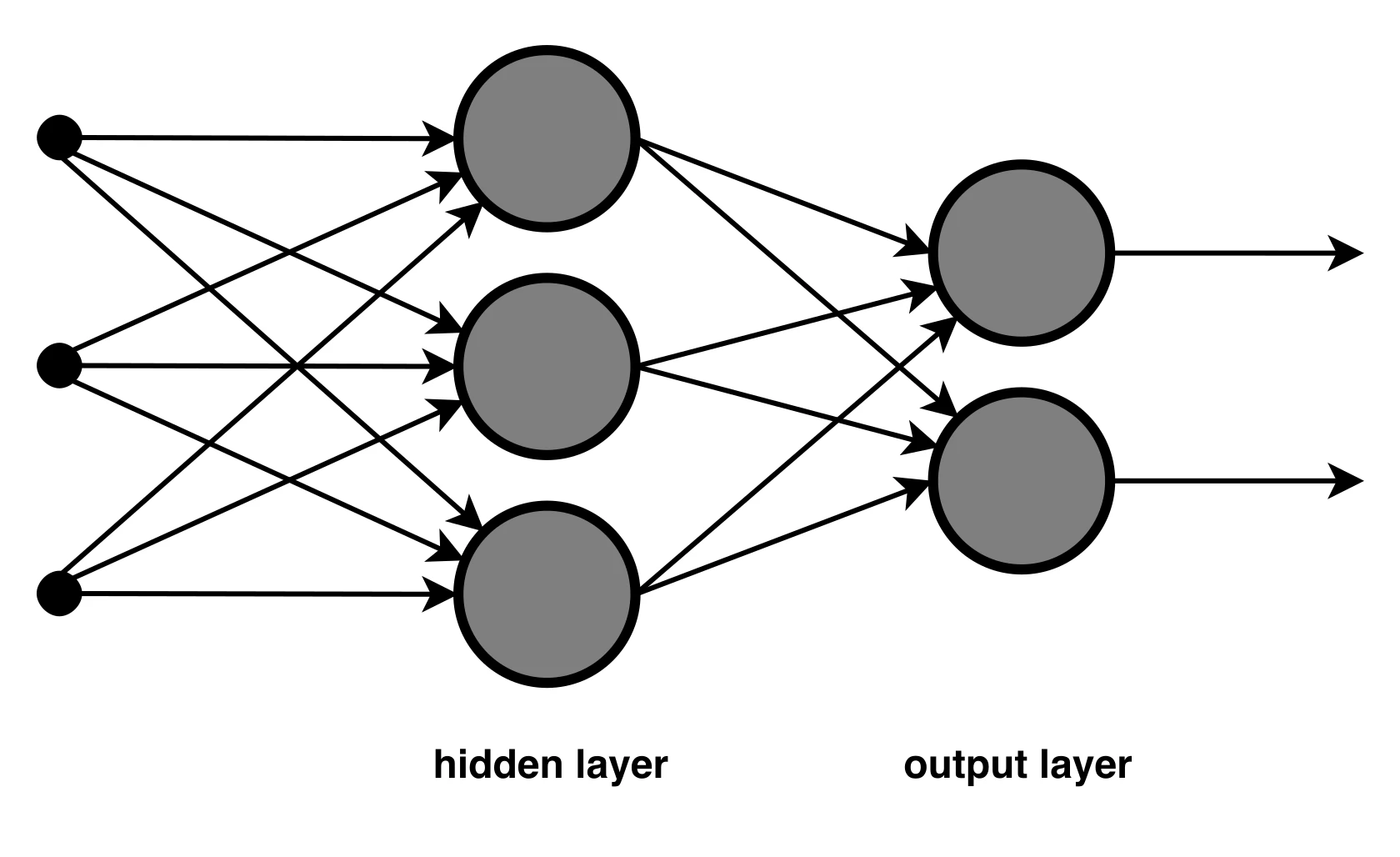
Copilot generates answers using large language models (LLM), which create text, summaries or code snippets based on the prompt and context. The model does not “understand” intent like a human, but predicts the most likely continuation based on the data and information provided. The quality of the result is influenced by what you enter into the conversation: the prompt, history, attachments, table fragments, emails or meeting transcripts. The more precisely you define the role, format and criteria (e.g. tone, length, number of points), the easier it is to get an answer in the expected form.
In many scenarios Copilot works in RAG mode, meaning it first retrieves information (e.g. in Microsoft Graph or on the internet) and only then generates an answer based on the content found. In the Microsoft 365 environment Graph can provide context from apps such as Outlook, Teams, SharePoint and OneDrive, respecting roles and access control lists (ACL). Copilot can also act as an “orchestrator” of actions — apart from creating text, it can run tools in the app in the background (e.g. prepare a draft email, slides or a to-do list), depending on the product used. Because the tool can generate convincing but false content, it is worth keeping the risk in check by pointing to sources (links/files), using shorter prompts and verifying numbers and facts in source materials.
RAG and knowledge search in Copilot
RAG in Copilot means that the tool first searches for information in available sources and only then generates an answer based on the content found. In practice, this means that the question “how does Copilot know that?” often has a very concrete answer: from documents you have access to (e.g. in the Microsoft 365 environment) or from the internet (e.g. in Bing/Edge mode). RAG is especially useful when you want an answer grounded in real materials, rather than general advice without reference to data. At the same time, the quality of the result depends on whether Copilot has something to “reach for” — that is, whether you point it to the right files, threads or links.
In web mode (e.g. Bing/Edge) Copilot can often provide links to sources, which makes verification easier and reduces the risk of accepting incorrect information. In the Microsoft 365 environment the answer may be based on internal files, so the “origin trail” is presented differently (e.g. by indicating documents rather than public URLs). If controllability matters to you, ask for the materials on which the answer is based and stick to working from clearly specified context. This approach also helps when discrepancies or doubts arise regarding the currency of information in the organisation.
- 01SearchFinding information in sources.
- 02GenerationCreating an answer based on the content.
- 03Data qualityDepends on access to the right files.
- 04VerificationEasy checking of sources and reduced errors.
RAG combines precise search with Copilot’s intelligence, delivering answers grounded in real materials.
Security and privacy when using Copilot
Security and privacy when using Copilot in an organisation are based on the principle that the tool operates within the user’s permissions and the company’s policies. In practice, this means that Copilot at work should not “expand” access to data, and the risk of unauthorised access increases mainly when a company has incorrectly configured permissions (e.g. in SharePoint/Teams). The biggest security lever therefore remains order in access and governance: naming, versioning and the document lifecycle. In practice, AI quickly “inherits” the mess in repositories and may repeat out-of-date instructions if it comes across them.
Data protection is supported by mechanisms such as Microsoft Purview, Sensitivity Labels and DLP rules, which can reduce the risk of information leaking into chats and documents. In the context of GDPR, what matters is which data you enter in prompts and which systems are the source of context. Sensitive information should be kept to a minimum, and where possible, anonymisation or pseudonymisation should be used. Organisations usually also implement a review process (a human approves the content), because Copilot can draw incorrect conclusions, especially with incomplete data or imprecise questions. In addition, access to features may depend on the plan, licence, app version and administrator settings, which affects where and how Copilot can be used safely.
- Use permitted sources and channels. If you are analysing a contract or company data, do it in the business version with controls, not in the public chat.
- Do not paste secrets (e.g. tokens, passwords) or data that the organisation forbids in prompts. Use placeholders and provide only the necessary context.
- Focus on verifiability. Check figures and facts in the source materials, and in web mode use linked citations.
- Use sensitivity labels and DLP rules where personal data or sensitive information protection applies.
- Support users with prompt training and a verification checklist so they do not treat Copilot’s answers like an “encyclopaedia”.
Integrations and extensions in the Copilot ecosystem
Integrations and extensions in the Copilot ecosystem involve connecting additional data sources and company systems so that the assistant can operate in a broader context than Microsoft applications alone. Depending on the product and configuration, Copilot can be extended with plug-ins, connectors or API, as well as with data from tools such as ServiceNow, Jira or SQL databases. If you want Copilot to check the status of a ticket or trigger a process, this usually requires integration (e.g. via Copilot Studio and/or Power Automate), and does not work “out of the box” in every variant. In practice, this means deciding which systems are to be the source of knowledge and what actions the assistant is to perform.
Copilot Studio is used to create custom copilotów for specific departments, such as HR, IT or customer service, taking company knowledge sources and processes into account. Such a copilot can, for example, answer questions about leave, pull data from SharePoint and trigger a flow in Power Automate to submit an application. Power Platform Copilot, on the other hand, supports building apps and automations in natural language, which speeds up prototyping processes without manually “gluing” everything together from scratch. For extensions to be reliable, it is key to maintain the quality and freshness of knowledge sources, because Copilot will repeat out-of-date instructions if it finds them.
Copilot in Windows and Edge: support for the end user
Copilot in Windows and Edge supports the end user as an integrated assistant, making content creation, answering questions and streamlining everyday tasks easier. In Windows, it works as a panel or window, and the range of available actions depends on the system version, region, and the permissions and policies enabled by the organisation. If you expect Copilot to “set up the computer” or make a system change, some actions may require confirmation or may not be available in managed environments. In practice, it is better to treat it as a tool for more efficient work with content and settings, rather than full automation of the entire system.
In Microsoft Edge, Copilot can summarise the open page, extract key points and prepare a note or email based on content from the browser, which shortens research and streamlines communication preparation. For many people, it is also a convenient way to compare information based on pasted parameters or links, without manually transferring data into a document. In the context of privacy and working with files, the safest assumption is that anything you paste into the chat or point to as a source may be used to generate a response, and access to the data remains controlled by the application and permissions. Differences between personal and work accounts, as well as regional restrictions, may mean that the same features are not available to all users.
FAQ
Frequently asked questions
How does Microsoft Copilot AI work in practice?
Copilot combines a language model, a search engine and data from applications to generate answers, summaries and other content. The quality of the output depends on the context you provide, such as files, emails or table extracts.
Is Microsoft Copilot one app or several versions?
It is a family of assistants available in several variants, including Microsoft 365, Windows and Edge/Bing. Each variant has a different scope of features and different rules for data access.
What is the difference between consumer Copilot and business Copilot?
The consumer version is mainly for chat and generating content based on the context provided. The business version can use organisational data, but only within the limits of the user’s permissions and company policies.
What tasks does Copilot help with in Microsoft 365?
In Word, it can draft documents and rewrite text; in Excel, analyse trends and suggest formulas; and in PowerPoint, build presentations based on a file or brief. The best results come from providing a specific source material and work objective.
Why does Copilot sometimes give incorrect answers?
Copilot can generate convincing but untrue content, known as hallucinations. That is why it is worth checking figures, facts and conclusions against sources.
How does Copilot use data and searched information?
In many scenarios, it works in RAG mode, meaning it first searches for information and then creates an answer based on it. It may rely on documents you have access to, or on web content in web mode.