

How to use Wayback Machine to browse old websites
Most often, an archived website can be opened by pasting its address into Wayback Machine (web.archive.org) and selecting a specific year and date in the calendar. After opening the archived version, it is best to navigate using links within the same day, because different subpages may have been saved at different times. If the site had many subpages, the star view in the format https://web.archive.org/web/*/example.com is useful, as it lets you preview available records faster. If a given subpage does not open, it is worth trying the version of the address without parameters, for example by removing a fragment such as
?id=123
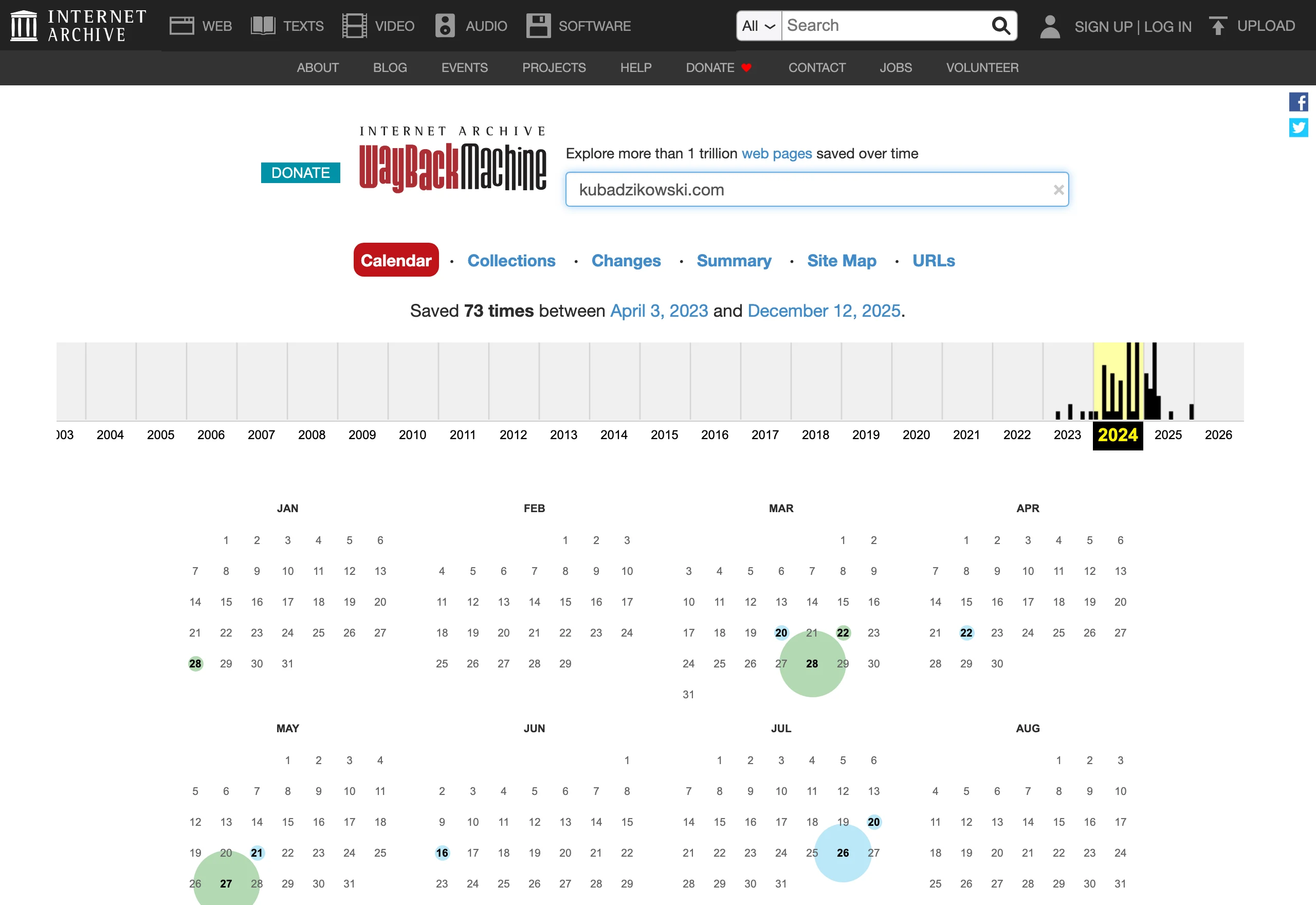
If only the homepage (index) is visible in the archive, you can still recover part of the content by clicking links from the same date or checking other snapshots. It often also works to manually check typical paths that archive robots usually saved, such as /kontakt, /about, /download, /gallery, /news or /index.html. If you manage to find at least one working image or CSS file, it is a good idea to paste its full URL into the archive and check whether there are other resources in the same directory. This is a simple way to “work around” the gaps when the HTML is available but the page looks incomplete.
- 01Paste the address and choose a dateBasic access to the archive.
- 02Move within one dateAvoid mixing different moments.
- 03Use the star viewQuick preview of all subpages.
If a subpage does not work, try the address without parameters or check other snapshots from the same date.
Alternative methods of opening archived websites
If Wayback Machine has no record or there are gaps and blocks, you can try opening an archived website through other archives and copy-search tools. Archive.today (Archive.ph) often stores “frozen” HTML as a static snapshot and can be effective for simple sites that blocked robots from archiving, although forms, login and dynamic elements usually will not work there. When you do not know where to look for a copy, Memento Time Travel (https://timetravel.mementoweb.org/) works as an aggregator and shows time-nearest versions from many repositories. This is especially useful when you need a specific date (e.g. “January 2008”), and one archive has gaps.
- Archive.today / Archive.ph — a good alternative when Wayback lacks a record. The copy is static, so dynamic elements usually will not work.
- Memento Time Travel — searches “mementos” across many archives and returns versions closest to the specified date.
- OldWeb.today — renders archived copies in old browsers (e.g. Netscape 4, IE 5.5), which can help when the layout “falls apart” in newer ones.
- Search engines (site: and cache) — make it easier to find old subpages, mirrors or quoted fragments when you do not know the exact URL.
- External links (Wikipedia, forums, directories) — can point you to old paths such as /index.html, /home.htm, /default.asp, especially when the domain has expired.
- Repositories and mirrors (GitHub, SourceForge, universities) — sometimes contain complete copies of projects and websites, especially those with downloadable files.
- RSS/Usenet/newsletters — may preserve the content of posts and announcements even when the website stops working.
If you do not remember the exact address of a subpage, use operators in Google/Bing, e.g. site:example.com “stare hasło” or site:example.com filetype:html, to narrow the results to one domain. In practice, this can lead you to copies in mirrors, on forums or in documents where fragments of content have survived (e.g. in PDF). If the domain no longer exists, old links from Wikipedia, forum posts or archived directory snapshots pointing to historical addresses can be helpful. If the old look of the site matters, not just the content, consider OldWeb.today, which often better reproduces layouts based on frames and old CSS.
How to run old websites in compatible browsers
Old sites are easiest to get running by choosing a browser and compatibility settings so that they do not block the outdated solutions used on the site. When a message such as “Your browser is not supported” appears, try swapping the User-Agent identifier for an older one (e.g. via the User-Agent Switcher extension in Firefox/Chrome), because some services blocked access solely on the basis of the UA header. If modern Chrome breaks the layout or blocks some elements too aggressively, Firefox ESR can be useful, and sometimes also Pale Moon or Basilisk, which can work better with older JavaScript. If what matters to you is primarily the content, not the appearance, text-based browsers (Lynx/w3m) can bypass CSS/JS issues and “pull out” the content faster.
When a page layout starts to “fall apart”, the cause is often a different interpretation of code errors and a missing doctype, which affects quirks mode and rendering behaviour. Problems may also result from differences between HTTP and HTTPS. Old sites often worked only over HTTP, and today automatic redirects or HSTS can move the user to HTTPS with errors. For this reason, it is worth deliberately checking the http:// variant or using an archived copy, where the HTTP version usually works more stably. If the text is visible but images or the menu are missing, a common culprit is mixed content (resources over HTTP on an HTTPS page), which modern browsers block. Sometimes it helps to temporarily allow “insecure content” for a given site. If the differences concern fonts, check in the CSS for references to older formats (e.g. .eot) or problems loading TTF and, if necessary, revert to system fonts (e.g. by removing the @font-face rules in the copy).
If there are multimedia embeds on an old site, they usually will not run in the browser because plugins (e.g. RealPlayer or Windows Media) have been discontinued. In such a situation, the most practical approach is to identify the direct address of the source file (e.g. .rm, .wmv, .mp3) and play it in VLC, rather than trying to reactivate old plugins. Avoid running outdated browsers “live” on a normal system, because the lack of security patches increases the risk of infection — if you must, do it in an isolated environment (VM) and without access to accounts or passwords. In practice, it is often safer to use a copy from an archive than to connect directly to the old server.
- 01Match the browserChoose compatible settings
- 02Change the User-AgentUse an older identifier
- 03Compatibility modeFirefox ESR, Pale Moon
- 04Text-based browserExtract the content only
Adapt the environment and bypass the blocks to regain access to archived content.
troubleshooting TLS and certificates on old servers
You can resolve TLS and certificate issues most quickly by determining whether the error stems from an outdated cipher and protocol configuration, or from the certificate itself. When the message “ERR_SSL_VERSION_OR_CIPHER_MISMATCH” appears, the server may support only TLS 1.0/1.1 or older ciphers that a modern browser will not accept. In such a situation, it is often more sensible to use an archive that fetches the content on its side and serves it correctly, and to use diagnostic tools such as SSL Labs to confirm the cause. Do not globally enable old ciphers in the system, because this increases the risk for the whole computer.
If a site uses a SHA-1 certificate or has an expired trust chain, the browser may display warnings or block access altogether. For a one-off view, it is more sensible to use an archived copy or download the content in read-only mode (e.g. as an HTML save), rather than clicking through and ignoring the warnings during normal browsing. On older shared hosting, another problem can be the lack of SNI: the client receives “the wrong” certificate, which can be checked with tools such as openssl s_client with the servername parameter. If the domain has enforced HTTPS through HSTS and HTTPS is broken, in Firefox you can remove the HSTS entries for the domain (e.g. “Forget About This Site” or clearing data), but it is worth doing this carefully and only when you know exactly what you are changing.
When you need to download content from an old server despite TLS limitations, forcing the protocol version can sometimes help (e.g. with curl –tlsv1.0), although success also depends on the TLS libraries in the system. If the domain no longer exists and a DNS error appears, you will not open anything without a copy. In that case, you are left with archives (Wayback/Archive.today) or mirrors, and at the same time it is worth being wary of domains re-registered by someone else. A layered approach works best for diagnosis: separate DNS, TCP (port 80/443), TLS and HTTP, because only then can you assess whether to look for a copy in an archive or fight the connection configuration. Tools that are useful for such verification include curl -I, traceroute and network tools in the browser (Network).
how to run old technologies: Flash, Java, ActiveX
Legacy technologies on websites today are most often run through emulation or in an isolated environment, because modern browsers no longer support many old plug-ins. When you come across animations or menus in Flash (SWF), a practical choice is Ruffle, which emulates many SWF files without installing Adobe Flash Player. For larger collections of Flash content, Flashpoint is also useful; it works offline, with a launcher and a local server for running many titles. If you want to minimise the risk as much as possible, it is better to rely on offline solutions or emulation than to install historical plug-ins on your main system.
Java applets do not work in modern Chrome/Firefox because the NPAPI plug-ins have been removed from them. If you really need to run an applet, depending on the case, you can use IcedTea-Web (where it works) or run an old browser and an old JRE in a virtual machine. Often a more sensible alternative is to find the application version as a .jar file and run it locally, if the site once made it available. For old multimedia embeds (RealPlayer, Windows Media), instead of reviving plug-ins, it is often more effective to find the link to the source file and play it in VLC.
In practice, sites that require ActiveX mean Internet Explorer on Windows, so in such situations you usually need an IE environment. The safest option is to run Windows XP/7 in a VM and use IE on an isolated network, without logging in to modern accounts and without installing components from untrusted sources. Sometimes “IE Mode” in Microsoft Edge also helps, although ActiveX may still not work in full. The most common mistake is running outdated technologies on your main system. Instead, use a VM (e.g. VirtualBox/QEMU), take a snapshot before testing, and do not use the same passwords or cookies as you do day to day.
- 01Flash emulation (Ruffle)Safe SWF playback
- 02Offline archive (Flashpoint)Own launcher and server
- 03Isolated environmentFor Java and security
"Modern browsers do not support old plug-ins – use emulation and offline solutions for security."
how to deal with limitations of web archives
Limitations of web archives are most effectively worked around by changing the source of the copy and the way you reach the correct address, rather than assuming that one date or one archive will be enough. When Wayback shows a block (e.g. because of robots.txt), look for workarounds: archive.today, mirrors, citations on other services or attachments that survived outside the original site. If in the archive you can only see HTML without styles and scripts, check the same subpage in other dates (e.g. a few months apart), because dependent assets may have been archived at a different time. It also helps to open CSS/JS links separately to check whether the archive has other variants of those files.
Problems with dynamic pages in archives are often solved by simplifying the URL and removing session parameters or tokens that make matching the saved copy difficult. It is worth stripping elements such as sid=, session= or long random strings from the address, because the archive often stores only one variant of the response. If the site once loaded resources from subdomains (img., static., cdn.), check in the archive whether records also exist for those subdomains, and sometimes test replacing the host in the resource URL (e.g. with www). When external counters or ads fail to load and block the rest of the page, the symptoms can look like a “broken menu”, even though the content itself is still in the archive.
When an archived page “breaks” in a modern browser, an emulated environment or a different way of opening the copy may help. Modern CORS/CSP rules can block part of an archived site’s behaviour, so sometimes it is better to open it in oldweb.today, which renders pages in controlled, older browsers. If you are using a local copy, run a simple HTTP server instead of file://, because some resources do not load correctly from disk. If you need reliable “proof”, save the permalink to a specific snapshot with the date and time and make a PDF export or a WARC recording so that it can be reproduced years later.
Gaps in archives can often be partly filled if you treat them as a search for specific files rather than recreating the whole site at once. When styles or scripts are missing, enter typical path names directly in the archive (e.g. /style.css, /main.css, /menu.js) to check whether snapshots of those resources exist at all. It is also worth remembering that Wayback records time in UTC, so when searching for content from a given day it is a good idea to review several neighbouring records a few hours or days apart. For domains that have changed owner, authenticity is best verified by elements such as the logo, footer, contact links and dates in the content, and when citing you should always keep the link to that specific version.
preparing local copies of old websites for offline viewing
You can prepare a local copy of an old website for offline use by opening the saved HTML files directly in the browser (file://) and preserving the original directory structure. If images do not load, the most common causes are incorrect relative paths or a missing folder (e.g. images), so it is worth checking the code and verifying the src/href attributes. With very old sites, Polish characters can be a problem, so sometimes you need to set the encoding manually (Windows-1250 or ISO-8859-2) or add a meta charset to the HTML copy. If the site was built on a frameset, open the file that splits the screen (frameset), because a single frame may look like a “cut-off” page.
If you want to keep an entire website “for the future”, you can download it for offline use with tools that save the files and rewrite links so they work locally. HTTrack can download a site while preserving linking, but it is sensible to set a depth limit (e.g. 3–5) so you do not pull down unnecessary resources via external links. When you only need a single subpage together with its assets, wget is useful with options for downloading dependencies and adjusting links (e.g. -p and -k). If the site contains .php or .cgi, it will not work locally without a server, so in such cases run it via XAMPP (Windows) or in a Docker container with the appropriate PHP/Apache version.
- Copy the site from the medium (CD/DVD) to the hard drive, because some browsers restrict scripts from read-only media.
- Check whether the directory contains .swf, .jar or .class files — running them requires separate tools (Flash/Java).
- If the layout falls apart, use the developer tools (F12) and check which resources are not loading (Network/Console).
- If links lead to the wrong places because of the <base> tag, remove it or set it to the local directory.
diagnosing access problems with archived content
Access problems with archived content are easiest to identify by breaking the diagnosis down into DNS, TCP, TLS and HTTP layers, rather than guessing whether it is the “archive’s fault”. For a quick check of the server response and redirects, header-only requests (e.g. curl -I) are useful, because opening the page in a browser does not always reveal at which stage the error appears. If the server is old and TLS negotiation fails, as a fallback you can try downloading with a forced protocol version (e.g. curl –tlsv1.0), bearing in mind that this may not help. If the domain has expired and a DNS error occurs, you cannot “open” the original. In that case, you are left with the archive copy or finding a mirror.
If the content displays but the site looks “bare” or the navigation does not work, check in the developer tools (F12), in the Network/Console tabs, which files return 404 and from which hosts they are being fetched. Often a single CSS file or background images are missing because the assets were hosted on another subdomain or on hosting that was not archived or downloaded to the local copy. When downloading at scale from archives, also take their limits into account. Status codes 429/503 usually indicate restrictions, so it is wiser to reduce parallelism and spread the downloading over time. If you are not sure whether a given snapshot is “the right one”, save the link to the specific version with the date and time and compare elements such as the logo, footer and contact links to confirm authenticity.
FAQ
Frequently asked questions
How can you most easily open an old website from an archive?
Most often, it is enough to paste the site address into Wayback Machine and choose a specific year and date in the calendar. After opening the copy, it is best to navigate via links from the same date.
Can you open an old subpage if the archive only shows the homepage?
Yes, sometimes you can recover part of the content by clicking links from the same date or checking other snapshots. It also helps to manually check typical paths such as /kontakt, /about or /index.html.
Why does an old website not load fully from the archive?
Archives do not always save all subpages, CSS styles, images and dynamic elements. In many cases, this can be partially worked around by opening the missing resources directly or searching for them in other captures.
Are there other archives besides Wayback Machine if there is no copy of the site?
Yes, it is worth checking Archive.today, Memento Time Travel and OldWeb.today. Search engines, external links, mirrors and repositories where site copies have survived can also be helpful.
How can you open an old website if you do not remember the exact address?
You can use operators in Google or Bing, for example site:example.com with a keyword or filetype:html. Old links from Wikipedia, forums and archived site directories also work well.
Can old websites be run in a modern browser?
Sometimes yes, but often you need to change the User-Agent, choose Firefox ESR or use a text-based browser. When the problem is Flash, Java, ActiveX or old multimedia, it is safer to use emulation, a VM or tools such as Ruffle and VLC.