


Want to learn how to disavow external links in Google Search Console so you can get rid of unwanted links? You probably spend most of your time focusing on acquiring links aimed at improving your site’s position in the search results. At the same time, low-quality external backlinks can have a negative impact on a site’s SEO in certain situations.
When you disavow external backlinks, you are asking Google to ignore such links pointing to your site so that they are not taken into account in the ranking algorithm. By getting rid of harmful links and spam, you can avoid a drop in rankings or a manual penalty.
Why might you want to disavow external links?
One theory says that good external links push your site towards the top of the search results, but bad backlinks (spam, from poor sources, etc.) can affect your site negatively through the algorithm.
Google now understands better that many sites naturally attract spammy links without any intervention from the people running those sites. It is not that bad. In addition, it seems that Google’s approach to spam links is a bit different now and it does not penalise for this in the same way as it used to.
If you analyse a site using an SEO tool, you will probably see many such links, but it is not necessarily a situation in which you need to do anything. There are certain scenarios in which you may still want to disavow links:
- a drop in the search results / reduced traffic – if a site has experienced such a problem and the backlink profile does not look very good, then you can disavow bad links to recover traffic to the site,
- proactive action – perhaps the site is performing well, but you are still worried that your external link profile will cause problems. For example, you may have used link building services that you now want to stop using because the links acquired turned out to be spam,
- SEO attack – if a dishonest competitor has attacked you with spam links in order to affect your site’s position in the SERP negatively, this may be another reason to disavow links to make sure they do not have a negative impact on the site.
As far as Google is concerned, the company recommends disavowing external links if the two conditions below are met:
- your site has huge amounts of artificial backlinks/spam links pointing to it,
- the links have led to manual actions or there is a high probability that they will.
- 01Bad links theorySpam had a negative impact.
- 02Google understands betterThe algorithm knows the context.
- 03No need to reactOften there is nothing to do.
- 04Special scenariosWhen it is worth acting.
Summary: Google ignores most natural spam, but there are exceptions where disavowing is still beneficial.
How do you find links to disavow?
Before you can disavow external links in Google Search Console, you first need to decide which backlinks to disavow and then place them in a text file.
There are two options for disavowing external backlink sources:
- you can enter a specific URL to disavow links only from that page. For example, the address targeting site.com/spam-post will disavow backlinks from that page, but it will not affect links from the page site.com/cool-post,
- you can also choose entire domains to disavow all backlinks from any places on such sites. For example, targeting site.com will disavow all external links coming from site.com, including site.com/spam-post AND site.com/cool-post.
You cannot disavow subpaths. The only option is to remove individual URLs or entire domains. The easiest way to find specific pages and domains to disavow is to use one of the many SEO monitoring tools, such as:
- Ahrefs Backlink Checker,
- Moz Link Explorer,
- Semrush Backlink Audit.
All of these services have tools that allow you to see your site’s external backlinks. Usually, they can be filtered using the “spamminess” option to find only harmful backlinks. For small-scale actions, a tool may be unnecessary. For example, if you only want to get rid of backlinks from one domain, you do not need a tool, because Google allows you to disavow an entire domain.
How do you disavow links in Google Search Console?
Let’s move on to a step-by-step guide showing how to disavow external links using Google Search Console. First, you need to verify the site using GSC.
- 01Verification in GSCA necessary first step
- 02Create a .txt fileOne link per line
- 03Format the linksHTTPS or domain:prefix
- 04Upload the fileSubmit to GSC
Key stages of the process of excluding harmful external links to improve SEO.
Creating a text file with links to exclude
At the beginning, you will need to gather all the links intended for exclusion in a .txt file. Each link should be on a separate line. To exclude specific pages, provide the full page URL, including the HTTPS element. For entire domains, use this format: domain:spammysite.com.
Here is an example of what the text file should look like. It will allow you to remove external links from three specific pages and two domains:
domain:shadyseo.com
domain:spammysite.com
There are some other important details related to the .txt file:
- the file name must have the .txt extension. You cannot use other formats,
- the file must be encoded in UTF-8 or 7-bit ASCII,
- the maximum file size is 100,000 lines, including blank lines and comments. This means that you can exclude up to 100,000 links/domains. In addition, the maximum file size is 2 MB,
- comments can be added to the file using the # symbol. Google will ignore them, but they may be useful when working with the file.
Uploading the .txt file via Google Search Console
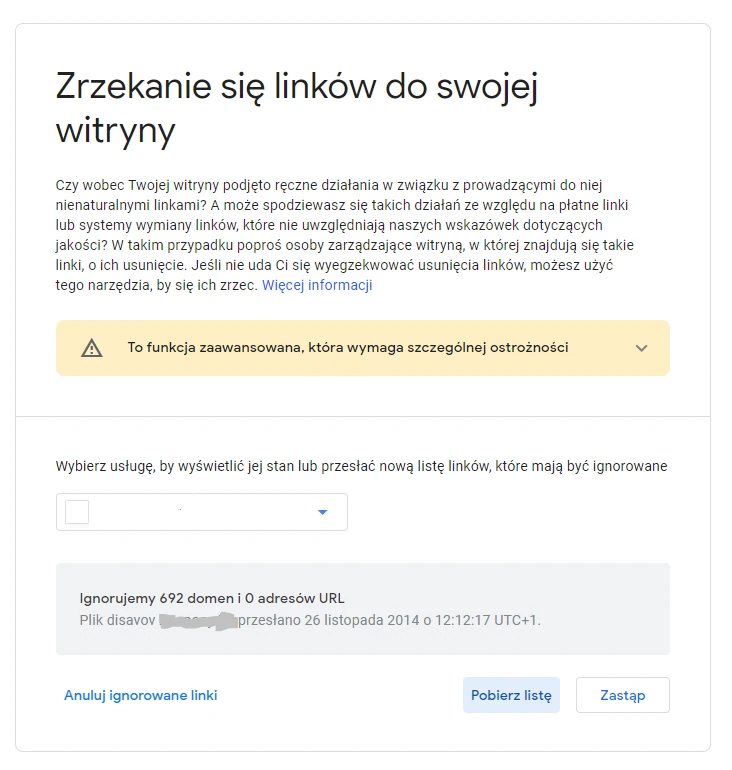
After creating your file with links to exclude, click here to go to the link disavow tool in Google Search Console. Then select your site (“property”) from the dropdown menu. Next, click the “Upload disavow list” button to upload the file with external links to exclude created in the previous step.
After uploading the file, the links should appear in the interface and that is all. If you have previously excluded any external links for a given site, updating such a new list will replace the existing links.
Important information about the link disavow tool
The disavow list applies only to specific selected properties. If you have two separate properties for the http and https versions of the site, it is necessary to submit the disavow list for both versions. You can also create a domain property that covers both http and https within such a property.
In addition, your disavow list will affect both the main domain and any subdomains. For example, submitting a disavow list for https://yoursite.com also applies to https://sub.yoursite.com/ and vice versa.
If you have separate properties for your subdomain, any disavowed links will also apply to the main domain. If you have submitted a different disavow list for the subdomain and the main domain, Google will combine these lists for both properties.
Wait a few weeks or even months. 🙂
The external link disavow tool does not work immediately. If the file has been uploaded successfully, you need to wait a few weeks for Google to start taking this information into account in search results.
How do you stop disavowing external links in Google Search Console?
If you decide that you have made a mistake and no longer want to disavow certain/all external links that were uploaded, Google allows you to cancel such a disavowal. To do this, open the link disavow tool page. Then select your site from the dropdown menu and click “Cancel Disavowals”. Again, the changes will take a few weeks to take effect, so they will not be noticed immediately.
FAQ
Frequently asked questions
How does the Disavow Tool in Google Search Console work?
It lets you specify external links that Google should ignore when evaluating the site. This means such links should not be taken into account in the ranking algorithm.
When is it worth disavowing external links in Google?
It makes sense when the backlink profile looks poor, the site is losing visibility or traffic, or there is a risk of a manual action. You can also act proactively if you have previously used link-building services and they turned out to be spam.
Why can spammy links harm a site?
Low-quality links can negatively affect SEO, especially when there are many of them and they come from bad sources. In extreme cases, they can also lead to a manual penalty.
How do you find links to disavow before uploading to GSC?
The easiest way is to use SEO tools such as Ahrefs Backlink Checker, Moz Link Explorer or Semrush Backlink Audit. You can filter links by spam score and choose the harmful ones.
How do you prepare a TXT file with links for disavow?
Each URL is entered on a separate line, and for an entire domain the format domain:yourdomain.com is used. The file must have the .txt extension, be saved in UTF-8 or 7-bit ASCII, and must not exceed 100,000 lines or 2 MB.
Does disavowing links in Google Search Console work immediately?
No, the effects appear only after a few weeks, or even months. The changes are not visible immediately after uploading the file.