


Site structure, also known as site architecture, means how well organised and interconnected the pages that make up your site are. A well-structured site is important not only for user experience, but also for search engine optimisation (SEO).
Website architecture is important in SEO for several key reasons:
- it helps search engines find and index all the pages that make up your site,
- it distributes authority across pages through internal links,
- it helps users find the content they are looking for.
Internal links create the site structure. This means that linking from one page to another gives Google (and readers) broader context for a given page and the ability to reach the linked page.
Why is site architecture important?
Site architecture is important because it affects both search engine rankings and user experience. Good site architecture helps pages achieve better positions in Google rankings because it affects Google’s ability to find and index all relevant pages and helps it understand what a given page is about.
Imagine walking into someone’s house for the first time. You won’t immediately know where each room is. But from the context you’ll know that there should be a bed in the bedroom, a toilet in the bathroom, etc.
Now imagine that you go into the bathroom and see a bed next to the tap. In such a situation, you may wonder whether the room you are in is a bathroom or a bedroom.
The situation looks similar when the Google robot encounters a disorganised site. If its structure does not make sense, Google will not understand the purpose of the individual pages. There may also be difficulties in understanding where and when your pages should appear in search results.
Google uses internal links to discover pages and create their rankings. Site architecture is created through internal links between pages.
The more disorganised your site architecture is, the less content Google gets about the pages and their relationships with one another.
That is why it is important to apply an overall internal linking strategy when creating the site structure.
By creating links between pages, you tell Google which pages are connected to one another. If you link to a particular page many times, Google understands that, in your view, it is important.
Site architecture also affects user experience. You should carefully plan your site structure to make it easier for users to get to products, services and important information.
The easier it is for someone to work out why they landed on your site, the greater the chance that that person will become a customer or take an interest in your site’s content.
For many users, the most important function of a website is easy navigation. One of the key functions of the content on a site is to direct users to the “sales funnel”. A good example is Sephora.
The user-friendly menu of this makeup site groups all products into well-known categories (e.g. makeup, skincare, eye makeup, etc.). In this way, shoppers can find the products they need in just a few clicks.
Bear this in mind when you decide how to present your products and content to your site’s users. The structure you choose will affect how users interact with the site and whether they do what you want while they are on it.
For example, you can paginate results (e.g. display products or search results on separate pages, or use infinite scroll (e.g. load more content as the user scrolls further and further down).
Infinite scroll can reduce the number of clicks a user needs to reach a product. This allows users to find what they are looking for more quickly.
Pagination, however, gives the user greater control and makes it easier to remember where products are located and return to them.
Pagination usually works best for navigation-based sites. Infinite scroll can, however, work well for a blog or content that is not product-based.
- 01Impact on SEO and UXBetter rankings and experiences.
- 02Google indexingEasier discovery and understanding.
- 03Intuitive navigation (like at home)A logical room layout.
- 04Avoiding chaos and confusionClear content context.
Summary: Good architecture is the key to visibility and user satisfaction.
What does good site architecture look like?
A good site architecture should deliver the following benefits:
- grouping content related by topic,
- organising groups in a logical hierarchy,
- highlighting the most important pages.
The best option is to use a flat rather than a deep site architecture.
These terms describe how deep your site structure is, or how many clicks are needed to get to subcategories. This is often referred to as crawl depth or click depth (głębokość crawlingu lub klikania).
Users should be able to access content with as few clicks as possible. The ideal number of clicks needed to reach any page within a site is fewer than four.
This way, the user does not have to make too much effort to find the content they need.
It is important to make sure that every important page is part of the site architecture. This means that every page has at least one incoming link from another page on the site.
Pages that do not have internal links pointing to them are called orphan pages.
Search engines navigate the web using links. They will probably have trouble accessing and ranking pages without links pointing to them. Users, in turn, can access a page that does not appear in search results only by typing the link directly into the browser.
Important tip: create a clear site architecture and avoid orphan pages by building topic clusters or content groups related to the same subject that link to one another. This makes it possible to group related pages within the appropriate categories.
How to structure a website?
There are six tips for creating an optimal site structure:
- use internal links strategically,
- make sure users can reach your pages with just a few clicks,
- create a navigation menu that is easy to understand,
- optimise your site URLs,
- make use of “breadcrumbs”,
- use HTML and XML sitemaps.
- 01Internal linksConnect related pages
- 02Passing valueTransfer page authority
- 03User navigationMake content easier to discover
- 04Pillars and clustersBuild a thematic structure
An optimal structure, based on content pillars and strategic linking, supports both SEO and user experience.
Use internal links strategically
Internal links are hyperlinks that lead to other pages within the site.
When you link one page to another, you tell search engines that the two pages are related to each other. This allows search engines to determine your site’s structure.
Links also pass importance or authority in the eyes of search engines. It is therefore good practice to link to relevant, important pages on your site.
A solid linking strategy also helps users move between pages that are relevant to them.
A good internal linking method is to create content pillars and topic clusters.
Content pillars are the main, broader content categories. Clusters are supporting categories that back up the pillars.
An example would be creating a topic cluster around the pillar topic “Copywriting”.
Open a keyword research tool, such as “Keyword Magic Tool”, and check your target keyword. In this case, it is “copywriting”.
The tool will generate a list of related keywords, sorted by the monthly search volume of each keyword (monthly search range).
Scroll through the keyword list and start typing keywords related to copywriting that may fit the content making up your topic cluster about “copywriting”.
For example, you may find the following keywords related to copywriting:
- what is copywriting,
- email copywriting,
- copywriting examples,
- copywriting tools,
- copywriting courses,
- how to find the best copywriters.
Carry out this process for each main topic for which you create content. You will obtain a map of all the topic clusters that need to be placed in the site structure.
Next, create content for each pillar topic and subtopic you discovered. Link related topics according to the established linking architecture – main pages link to pillars, pillars to subtopics, etc.
After publishing the content, you should check for general internal linking issues. Open Site Audit and click the “View details” button (check details) under “Internal linking” (internal linking).
You will get a report containing the following information:
- crawl depth of each page,
- internal linking errors that need fixing,
- ways to improve the internal linking strategy,
- distribution of internal links on the site,
- a list of the best pages passing authority (importance).
While in the site audit section, you should also check the site for orphaned pages.
From the “Internal Linking” report, click the “# issues” button next to the “Orphaned sitemap pages” error under “Notices” (notifications).
You will get a list of orphaned pages.
If you find such pages, link to them at least once from a related page. This way, both users and search engines can access the previously orphaned page.
Make sure users can reach your pages in just a few clicks
Users should be able to access your site in as few clicks as possible (ideally fewer than four). This also applies to huge e-commerce sites with millions of pages.
The depth of the architecture also affects how search engines crawl your pages, as they move through pages via links. The lower the crawl depth, the faster and more likely the search engine is to reach the page.
You can use Site Audit to find out which pages require more than 3 clicks to access.
Press the button next to “Page Crawl Depth more than 3 clicks” (crawl depth exceeds 3 clicks) in the “Notices” section of the internal linking report. You will get a list of links that are “too deep”.
If you find any pages that take more clicks to reach, consider simplifying your site structure.
Tip: use pages with authority on your site to link them to pages with a high crawl depth. You can find authoritative pages by browsing the “Pages passing the most Internal LinkRank” widget in the internal linking report in Site Audit. Pages with a high internal link rank pass more authority.
Create a navigation menu that is easy to understand
Using a navigation menu is an easy way to connect pages and support the site structure. A menu is usually a set of related links.
There are many types of navigation menus to choose from. There is no single right way to structure a menu, but what matters is that navigation is as easy as possible. This way, customers can find important pages and do what you want them to do (buy a product, etc.).
The most common type of navigation is a horizontal navigation bar. This simple option will work well on most sites.
The top navigation bar should provide the categories required by users (e.g. “Shop”, “Contact”, “About us”, etc.).
However, do not be afraid to tailor your top navigation. Think about your users and what they are looking for and what they want to achieve by browsing your site. That way, you will determine what should go in the navigation.
Let’s say you are a local car dealer. You will certainly want to include a link in the main navigation menu that takes customers to new cars.
However, many people buy used cars, so you will probably add a link to used vehicles, as well as links to other sections (such as servicing or finance).
In this way, someone who wants to buy a car, get finance information or book a service can instantly find what they are looking for thanks to the main navigation. After all, it includes all the key aspects of your business.
However, you should not overwhelm users with too many options right at the start.
If there are too many options in the horizontal navigation bar, you should consider a drop-down menu structure.
Dropdown menus work brilliantly on sites with a large amount of content and a complex site architecture. You can organise your important pages while still making life easier for the user.
For example, dropdown menus work great on e-commerce sites with many different products. Users first see a horizontal menu. Then, after selecting the category they are interested in, they notice additional options and links.
You can also use a vertical menu. This option is similar to a horizontal navigation menu, but it provides more space for the most important navigation links.
You may have a small site and want to place all the pages in the navigation menu. A vertical menu will make that easy!
Using this type of navigation also gives you the freedom to place additional information in the top part of the page, such as social media links or contact details.
When it comes to mobile site navigation, a popular option is “hamburger” navigation menus. On large screens, this navigation appears as horizontal, but on mobile devices it is vertical.
Users click the navigation button (the icon with three lines) to see the links. This saves quite a lot of screen space.
Hamburger navigation is a great choice if you do not want the menu to take up too much space.
You have certainly also seen navigation menus in website footers.
This type of menu usually goes hand in hand with horizontal navigation bars. You can place additional links there that do not fit in the main menu. This will not negatively affect the page layout, because such a menu appears in the lower part of the screen.
Want to update your menu? You can do it easily in a standard CMS (content management system):
Optimise your site URLs
Create short URLs and always use words that are related to your page content. Your target keywords usually work well here.
It is important for URLs to be clear, because Google uses them to understand the hierarchy and structure of your site.
Google recommends using short and simple URLs.
Here is an example of a poorly optimised URL:

Here, by contrast, you can find an example of a well-optimised URL that clearly shows what the page is about:

Most content management systems automatically generate URLs based on the H1 headings on the page and the category of the selected parent page.
This is not always ideal, but the CMS usually allows you to change the URL before publication.
Before publishing a page, make sure that the URL is concise and explains what the page is about. Be careful when changing the URLs of published pages. If it is necessary to change the address of such a page, set up the appropriate redirects.
Keeping a clear URL structure is easy when you use pillar pages and content clusters as a reference.
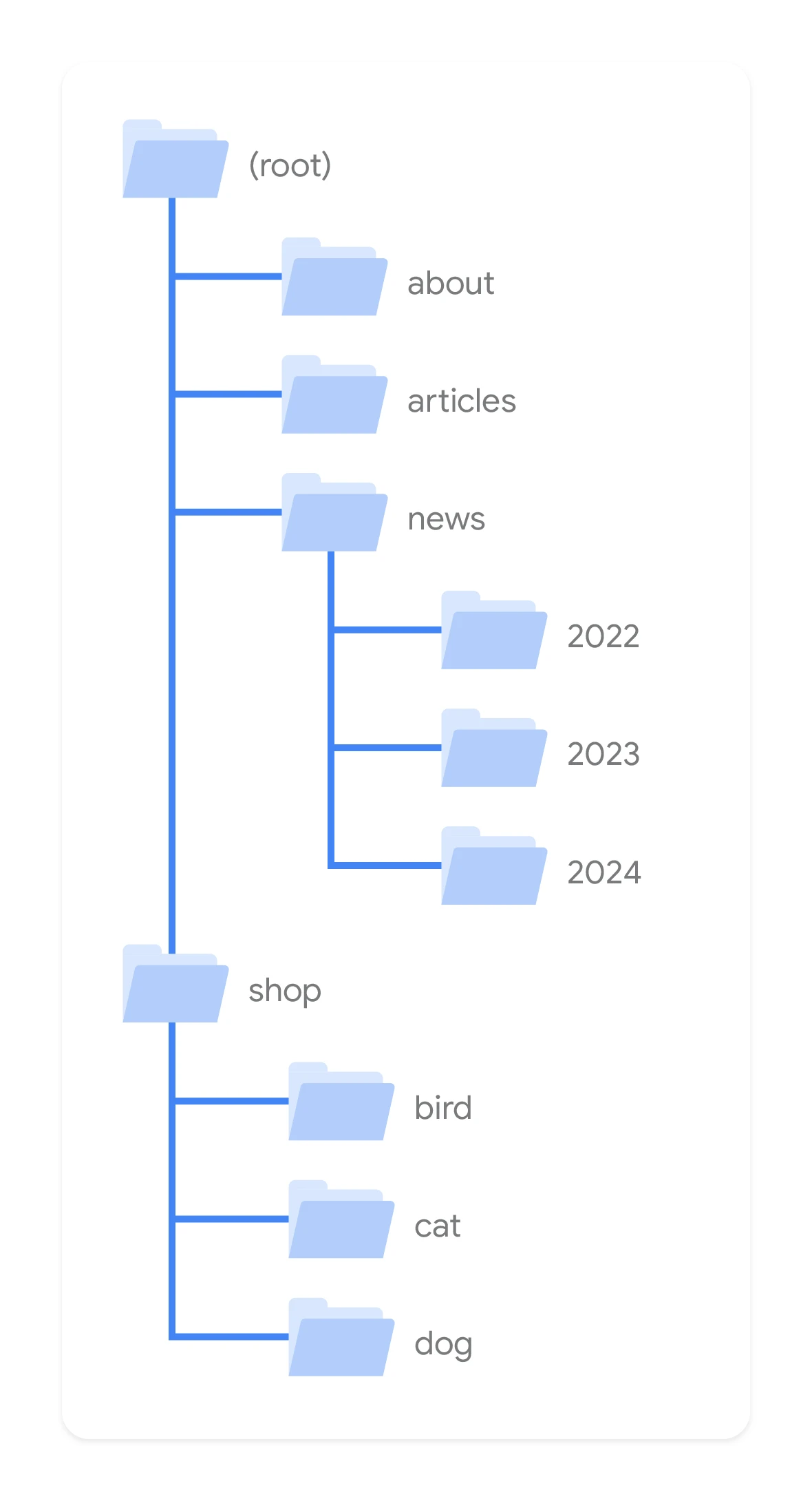
For example, the URLs of pillar pages can use the format yourdomain.com/pillar-topic
The URLs of cluster pages can in turn look like yourdomain.com/pillar-topic/cluster-topic
So if we use the above “copywriting” example, it would look like this:
- Pillar page: yourdomain.com/copywriting
- Supporting topic page from the cluster: yourdomain.com/copywriting/copywriting-email
Such URLs are optimised for user experience and SEO. The URLs of cluster pages show the relationship between the pillar topic and the supporting topic.
Use “Breadcrumbs”
Breadcrumb navigation is a text-based navigation trail made up of links. It shows users where they are in the overall site structure.
Breadcrumb trails also tell search engines what the site structure is.
You can therefore observe all the links from the homepage all the way to product pages.
When users move around the site, they do not always land on the product they want to buy or the content they want to read. It is therefore useful to show them a navigation trail, in case they want to go back.
Advanced tip: you can also add structured data breadcrumb markers to pages. This means the breadcrumb trail will appear on the search results page.
Use HTML and XML sitemaps
A sitemap is a file that presents all the pages, images, videos and files on a site.
This file shows how the different parts of your site are connected in a format that can be crawled by search engines.
The HTML sitemap was created for users. If they cannot find a specific page, they can find a full list of the pages that make up the site.
On the other hand, XML sitemaps were created with search engines in mind. They present a full list of URLs in plain text form, so search engine robots can access them easily.
If your sitemap contains errors, this may mean that search engines are unable to find or process certain pages. Search engines usually decide to ignore pages they cannot process, which leads to ranking problems.
To find XML sitemap issues, go to the “Issues” tab in the Site Audit tool. Then select “sitemap” in the search field.
A list of potential XML sitemap errors should appear, such as invalid pages or formatting errors.
Click on the errors found to get more details on how to improve the page. You can submit your site’s XML sitemap directly to Google via Google Search Console. We recommend doing this to inform Google about your site architecture as quickly as possible with just a few clicks.
FAQ
Frequently asked questions
How do internal links affect site structure in SEO?
They create connections between pages and help Google understand the site architecture. They also pass importance between pages and make it easier for users to navigate the site.
Why is a flat site architecture better than a deep one?
Because it lets you reach content with fewer clicks. The article says it is ideal when reaching any page takes fewer than four clicks.
What are orphan pages and why should you avoid them?
These are pages that no internal link points to. Search engines may struggle to discover and assess them, and users usually reach them only via the direct URL.
How do you build a good site structure with topic clusters?
First you create a pillar page, then supporting topics matched to it in clusters. Next, thematically related pages link to each other, creating a logical content map.
When is pagination better, and when is infinite scrolling?
Pagination usually works better on pages with navigation and products, because it gives greater control. Infinite scrolling can be good for a blog or content that does not rely on products.
What elements help structure a website?
The article mentions strategic internal linking, easy navigation menus, URL optimisation, breadcrumbs, and HTML and XML sitemaps. It is also important that the most important pages are accessible with as few clicks as possible.