

How does Google Images differ from classic web search?
Google Images differs from classic web search in that, beyond text matching, it also takes into account the image’s visual signals and the page context. In web search, ranking is based primarily on textual content relevance and link signals, whereas in “Images” the image itself is analysed as well. That is why the same query (e.g. “zamek”) can lead to articles in web search, and to photos of castles, coats of arms or 3D models in Images. This difference affects content planning, because “good text” alone is not enough if the image is ambiguous or poorly aligned thematically with the page.
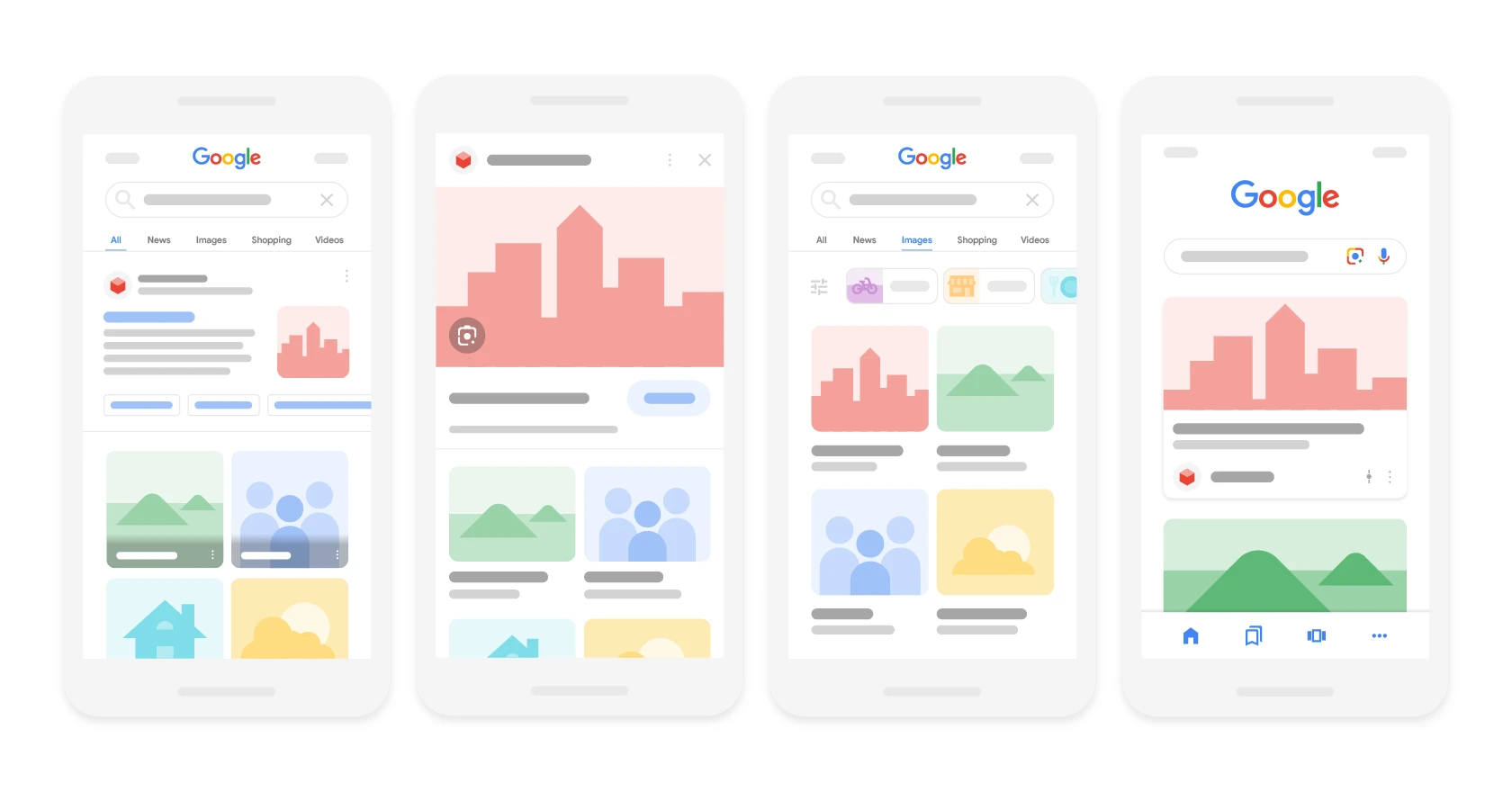
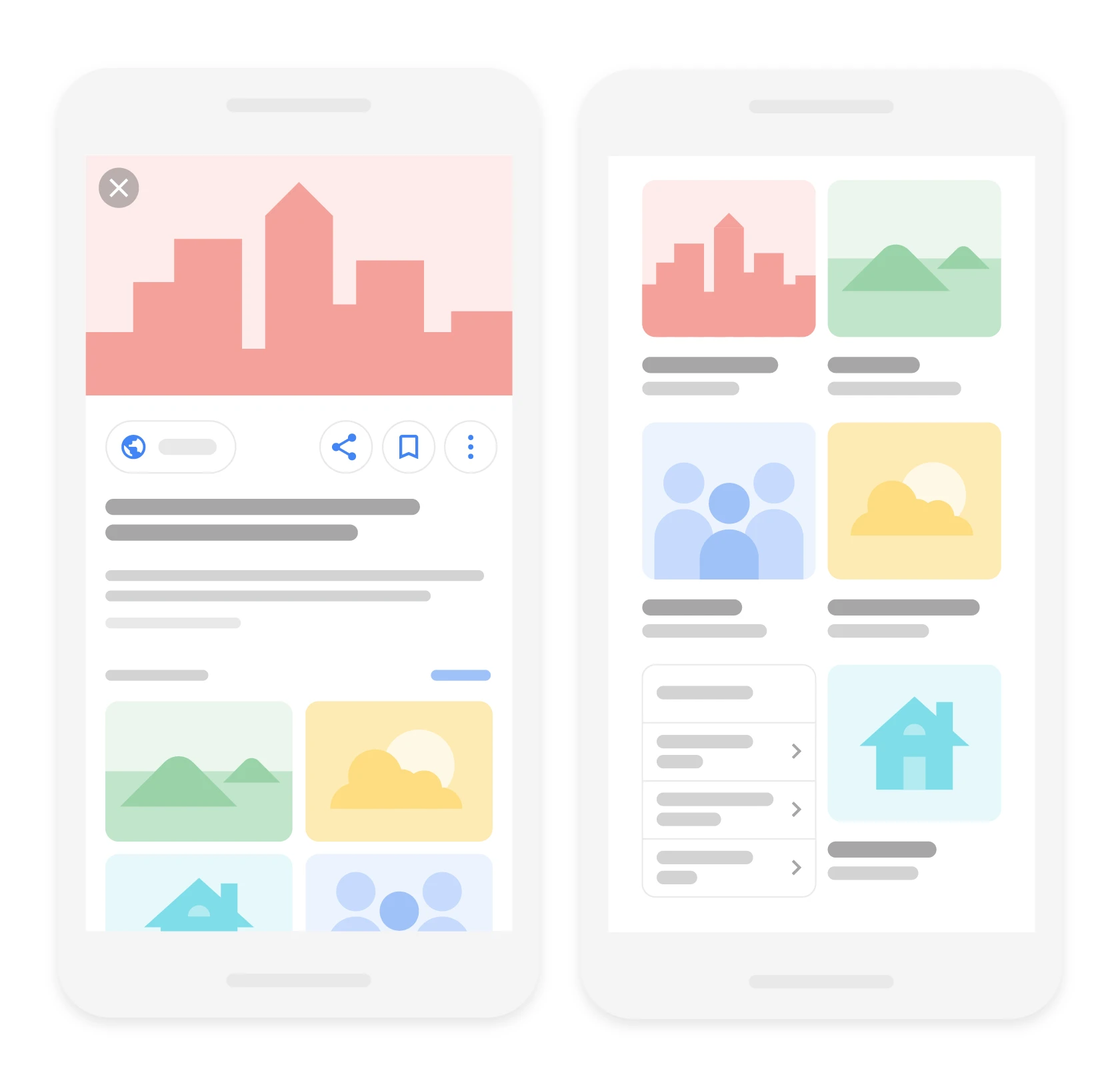
In Google Images, the user sees a grid of thumbnails, and after clicking, a preview panel with a larger image, the page title, domain and sometimes additional data (e.g. product price), which directly affects the decision to click. Results usually lead to the source page rather than to a direct file download, although Google can display previews and metadata. SERPs may also show labels such as “Product”, “Recipe” or “Video”, plus licensing information if the site provides it correctly. On mobile, the service is more tightly integrated with the Google app and Chrome (e.g. “Search by image”), while on desktop you more often get access to more detailed filters and broader information about the page.
- 01Classic web searchText content and links.
- 02Google ImagesVisual signals and context.
- 03Diverse resultsThe same query, different formats.
- 04Content planningRequires a clear image association.
Key difference: Images takes into account image analysis and page context, which affects content planning and the presentation in the form of a thumbnail grid.
Where does Google get images from and how does it index them?
Google obtains images from the web when Googlebot crawls pages, follows links and finds the URLs of image files embedded in HTML, CSS and structured data. If an image is loaded solely via scripts and has no fixed URL, it becomes harder to discover, which means it is less likely to end up in the index. Google often renders a page to see dynamically loaded assets, but this is resource-intensive and can happen with a delay. Key images available directly in HTML (e.g. via the standard element) are usually indexed faster and more reliably than those requiring complex JavaScript.
Technical settings of the site can stop indexing, including robots.txt and server responses for image files. When the image directory is blocked in robots.txt or the files return errors (e.g. 404/403), Google will not fetch the images and will not show them in results. HTTP headers are also important, especially the correct content-type (e.g. image/jpeg), because incorrect configuration can hinder rendering and indexing. On top of that, the same image can exist under many URLs (e.g. parameters, CDN, different sizes), and Google tries to select the canonical version for display.
- Image sitemap allows you to point Google to important images, their locations and context, which is particularly helpful on sites with a large number of photos (e.g. shops).
- Blocks and access restrictions (robots.txt, login requirement, overly aggressive hotlink protection) are among the most common reasons images are absent from the index.
- Images embedded in elements inaccessible to Googlebot (e.g. canvas) or loaded only after interaction may be difficult to discover and index.
- Many variants of the same image under different URLs can dilute signals, so Google may display a different version than the one you want to promote.
The time it takes for a new image to appear in results can range from a few hours to a few weeks and depends, among other things, on the domain authority and crawl frequency. In Google Search Console, you can try to speed up the process by requesting indexing of the page URL, but there is no separate “submit” for an individual image file. Google also supports modern formats (WebP and AVIF), but in practice the key point is whether Googlebot receives the correct file and whether a fallback is available (e.g. JPEG/PNG) if delivery depends on content negotiation. Metadata in files (EXIF/XMP) can be read, but it is not a guaranteed ranking factor, so from an indexing perspective a stable URL and on-page context matter more often.
How does Google understand and interpret images?
Google can recognise and interpret images by combining visual analysis with the text context of the page on which the image is placed. The system takes into account the content surrounding the image (H1/H2 headings, caption, paragraph and page title) in order to determine what the file shows. When the context is mismatched, relevance drops — for example, a “golden retriever” photo on a page about “cat food” weakens matching in Google Images. In practice, this means that a “nice photo” on its own does not solve the problem if the semantic surroundings do not confirm the topic.
The ALT attribute and the file name make it easier for Google to match an image to a query, because they provide simple and readable semantic signals. ALT should directly answer the question “what is in the image” (e.g. “Red enamel kettle 1.7 l on a gas hob”), rather than being used to stuff keywords. Equally important are descriptive file names and a well-organised URL structure (e.g. “czerwony-emaliowany-czajnik.jpg” in a topical directory), which usually perform better than random labels such as IMG_9483.jpg. These elements do not replace the page content, but they strengthen consistency and make correct interpretation easier.
Google also evaluates the visual layer of the image itself (computer vision), identifying objects, scenes and text visible in the graphic (OCR), which makes it possible to search even with sparse descriptions. Quality and usefulness matter: sharp, legible and appropriately large images are preferred because they better meet the user’s needs (for example, in e-commerce, 1200×1200 px often works better than 300×300 px). When many websites publish the same photo, Google more often chooses versions with the strongest context and the better source page, and original photos have a greater chance of visibility when there are fewer duplicates. In addition, structured data (e.g. Product, Recipe, Article) help connect the image with the entity and its attributes, while “Similar images” clusters and matching user intent affect the types of shots Google presents for a given query.
- 01Visual and contextual analysisVisual content plus surrounding text.
- 02Semantic consistencyThe surrounding content confirms the topic of the graphic.
- 03Key metadataALT attribute and file name.
Text context and appropriate metadata are necessary for Google to correctly understand the topic of the graphic.
Factors influencing the ranking and presentation of images in Google Images
The position of images in Google Images is determined by a set of signals coming from the page and factors related to the image itself. These include the relevance of the content and domain authority, as well as the subject of the image, its quality and its match to the query. If two images are similar, the one supported by better context and a more trustworthy source page usually wins. As a result, even a correct image can lose out when the page does not build a clear topical connection.
Results in Google Images can differ between users because personalisation and localisation mechanisms are at play. Google can tailor images to the language, country, search history and account settings, which is why the same query may return different results in different regions. For example, the phrase “pierogi” in Poland will show different images than in the US, where a different presentation style dominates. Freshness matters too. For news topics (e.g. “2026 Olympics”), recency usually carries more weight, while for evergreen topics (e.g. “periodic table”), quality and relevance move to the fore.
The way results are displayed translates into clicks, because users judge images first and foremost by the thumbnail and quick preview, and an unclear thumbnail (e.g. with very small text) can reduce CTR despite a high ranking. Results can also be narrowed with filters (size, colour, type, time), which changes the balance of power within the same query. For transactional intent, Google may show product cards with price, availability and seller if the data is integrated (e.g. via Merchant Center and Product schema). Licence labels may appear in SERPs, and SafeSearch can sometimes limit the visibility of potentially inappropriate content. It is also worth remembering that Google will sometimes choose a different image from the same page if it considers it a better representation of the query.
How does image search and Google Lens work?
Image search means that instead of typing a query, you use an image as the query to find its source or visually similar material. You can paste an image URL, upload a file or use the “Search by image” option in the browser, which is useful when asking “where does this photo come from”. The system matches results mainly on the basis of visual similarity (shapes, colours, patterns), not just the text on the page. This means it can show similar shots even when different sites describe the same product differently (e.g. with abbreviations or SKU codes).
Google Lens extends image search with semantic analysis of the photo, recognises objects, text (OCR) and lets you select a fragment of the frame to search. In practice, you can point to only the detail you are interested in (e.g. a handbag in a styling shot), instead of searching the whole photo, which is particularly helpful in fashion and interior design. Lens can also recognise and copy or translate text from a photo (e.g. a restaurant menu), acting like a “scanner” without manual retyping. When identifying objects (e.g. plants, animals, product models), effectiveness usually increases when the object is well lit and fills a significant part of the frame.
In shopping, Lens can suggest similar offers, prices and stores, combining visual matching with product data, which in practice answers the question “where can I buy something like this”. However, its limitations need to be taken into account: it can confuse similar objects (e.g. different phone models) or misread stylised graphics and memes. That is why it often works best to refine the results with words after image search (e.g. “this is a lamp, not a vase”). Privacy is also worth keeping in mind: the uploaded image is processed by Google to match results, so reverse image search should not be used for confidential material (e.g. documents or sensitive data).
- 01You search by imageUse the image as the query (URL, file, click).
- 02Visual similarityResults based on shapes, colours, patterns.
- 03Google Lens (analysis)Recognises objects, text (OCR), fragments.
- 04Detail identificationPoint to the fragment you are interested in (e.g. in a photo).
The system analyses visually and semantically, finding sources, similar material and information about objects based on the image and fragments.
SEO strategies for increasing image visibility in Google Images
Image visibility in Google Images is easiest to build by combining a good-quality file, short loading time and a clear indication of which image is representative of the content. For most sites, a main image of around 1200 px wide remains a practical standard, because it looks good in previews and on mobile devices. At the same time, it is worth compressing files (e.g. 150–400 KB for photographs) so as not to affect site speed. Overly heavy images are a frequent source of performance drops and can translate into a worse user experience.

The most “direct” effects in image SEO usually come from refining file size and formats, while keeping the key images loading correctly. For compression and optimisation, you can use tools such as Squoosh, ImageOptim, TinyPNG or automation in the build process (e.g. sharp for Node.js). When choosing formats, go by use case: JPEG for photos, PNG for graphics with transparency and sharp edges, and WebP/AVIF often allow a smaller file size at similar quality. If you serve WebP or AVIF, make sure you have a sensible fallback (JPEG/PNG), because some tools and integrations still work more reliably with classic formats.
- Use lazy loading in moderation: it speeds up the initial page load, but key “above the fold” images are better loaded straight away, rather than waiting for interaction.
- Provide width and height for images to limit layout shifts (CLS) and improve the user experience.
- Implement structured data appropriate to the content type (e.g. Product/Recipe/Article with an image field), so Google can more easily associate the right thumbnail with the entity.
- Add short captions in galleries, because they are directly linked to the image and help place it in context.
- Monitor the results in Google Search Console by filtering the Performance report by the “Image” search type, to spot graphics with a high number of impressions and low CTR for improving the thumbnail or page title.
Avoid actions that may appear manipulative, because keyword stuffing or misleading descriptions can weaken trust in the site. When an image loads only after an unusual event (e.g. a click), Google may see it with a delay or not at all, which reduces the chance of exposure in the results. Experience shows that the best approach is a consistent one: lightweight files, the right formats, a clear indication of the representative image in the data, and regular monitoring of queries and CTR in Search Console.
How to legally search for and use images from Google Images?
Legally searching for and using images from Google Images means treating the results as a guide to sources and checking the terms of use directly with the owner. Google Images is not a stock photo library and does not provide rights to use the material, even if it can be downloaded. In the search tools you can enable the “Usage rights” filter, but it relies on the information provided by the publisher and does not give 100% certainty. The safest option is to click the result, verify the licence on the source page and only then use the image in line with its terms (e.g. attribution or commercial restrictions).
In practice, Creative Commons licences often require crediting the author and linking to the licence, and sometimes impose an obligation to share derivative works under the same terms. If an image is marked “licensable” or contains rights information, Google may make it easier to find the owner’s details, but the decision still has to be based on the licence text on the source page. Publishers can also describe rights with IPTC metadata (e.g. “creator”, “copyright notice”), which helps establish who owns the photo and how to obtain a licence. The mere presence of an image in the results does not mean it is “free” or that it can be published freely.
The legal risk increases when you use stock or agency images without a licence, because unlawful use can result in a payment demand or DMCA notice. A watermark on an image is usually a clear sign that the material is protected or sold under licence, and removing protections may breach the law and the terms, so it is wiser to buy a licence or look for an alternative on legal terms. It is also worth remembering that even a legal photo may require consent for the use of a person’s likeness, especially in an advertising context. As the source credit, provide full details: author, title (if there is one), link to the source page and the licence, e.g. “Photo: Jan Kowalski, CC BY 4.0”.
Most common issues and diagnostics related to image visibility
The most common problems with image visibility come from Google not having access to the page or image files, or only “seeing” them partially. If an image does not appear in the results despite being published, start by checking whether the page itself is indexed (e.g. site:domena.pl) or use URL Inspection in Google Search Console. Often the cause is access restrictions, such as 403 errors (e.g. overly aggressive hotlink protection) or the inability to fetch files from the CDN by Googlebot. In practice, diagnostics are best started by making sure the file can be opened without logging in and without server-side blocks.
Differences between desktop and mobile results usually stem from stronger integration with Lens, the impact of location and personalisation, and on mobile the filters are sometimes hidden in the menu. If you are comparing visibility or positions, test in incognito mode and set the same language and region, otherwise the results will not be reliable. When thumbnails and previews load slowly, users are more likely to give up on clicking, and with poor server performance Google may fetch resources less often. PageSpeed Insights and Lighthouse are useful for identifying image issues, as they point out common areas (e.g. “Properly size images”, “Serve images in next-gen formats”).
If Google shows “the wrong” image from a subpage, it usually means that another graphic has been considered more representative for the query, especially when the main illustration lacks clear context. In such a situation, raise the priority of the correct image: place it higher in the HTML, add a specific caption and make sure structured data points to the correct image field. URL parameters for graphics can also cause confusion (e.g. multiple size variants), because Google may see numerous versions and will not always choose the best one — unifying the URLs and limiting the number of variants helps. If someone copies your photos, Google sometimes promotes the copy from a stronger domain or faster site, so it matters to publish first in high quality, add author/licence information and, if necessary, report infringements (e.g. DMCA).
Which images Google actually indexes can be checked in Search Console using the indexing and performance reports, as well as individual page URL testing. It is also worth looking at the code and making sure the image has stable src and alt and is not only generated after a click or scroll, because then it may be noticed with a delay. If licence filters do not work as you expect, the cause is often a lack of licensing signals from the publisher, meaning that even legal images may not qualify without metadata or a terms of use page. And if you simply want to reach the right image faster, refine the query with real attributes (e.g. “transparent background png”, “svg vector”, “4k”), and for a similar example use Lens and, after searching by image, add keywords.
FAQ
Frequently asked questions
How is Google Images different from classic web search?
In Google Images, not only words matter, but also the image’s visual signals and the context of the page. In web search, text content and links matter more.
Where does Google get images for Google Images from?
Google fetches images while crawling pages with Googlebot, which finds the URLs of image files embedded in HTML, CSS and structured data. If a file is difficult to detect or blocked, it may not make it into the index.
Are files loaded only through JavaScript indexed in Google Images?
They can be indexed, but it is more difficult and often delayed, because Google has to render the page first. Stable files available directly in HTML usually get indexed faster.
Why do some images not appear in Google Images results?
The most common reasons are a block in robots.txt, 404 or 403 errors, a login requirement or incorrect HTTP headers. Images loaded after interaction or embedded in elements inaccessible to Googlebot can also be a problem.
How does Google understand what is in an image?
Google analyses the image itself and the surrounding context, such as headings, the caption, the paragraph and the page title. ALT text, the file name, URL structure and structured data also help.
How does image search and Google Lens work?
You can paste the image URL, upload a file or use image search to find the source or similar materials. Google Lens additionally recognises objects and text, and lets you select a fragment of the photo to search for.